Translation Application
Multi-language Configuration
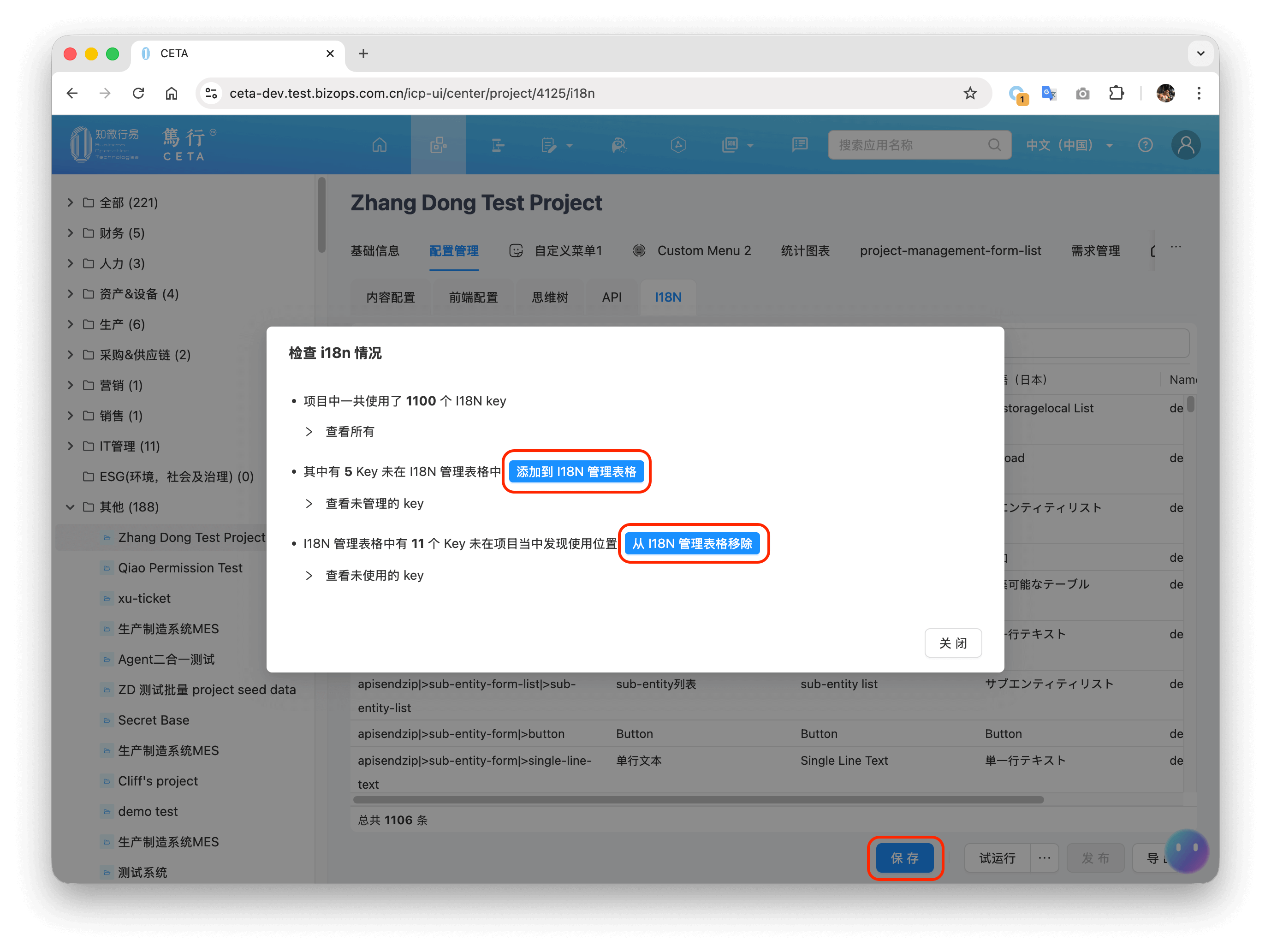
Select the list of languages to support in the application's Front-end Configuration
Translating the Application
Translating the Entire Application
Generating i18n Keys
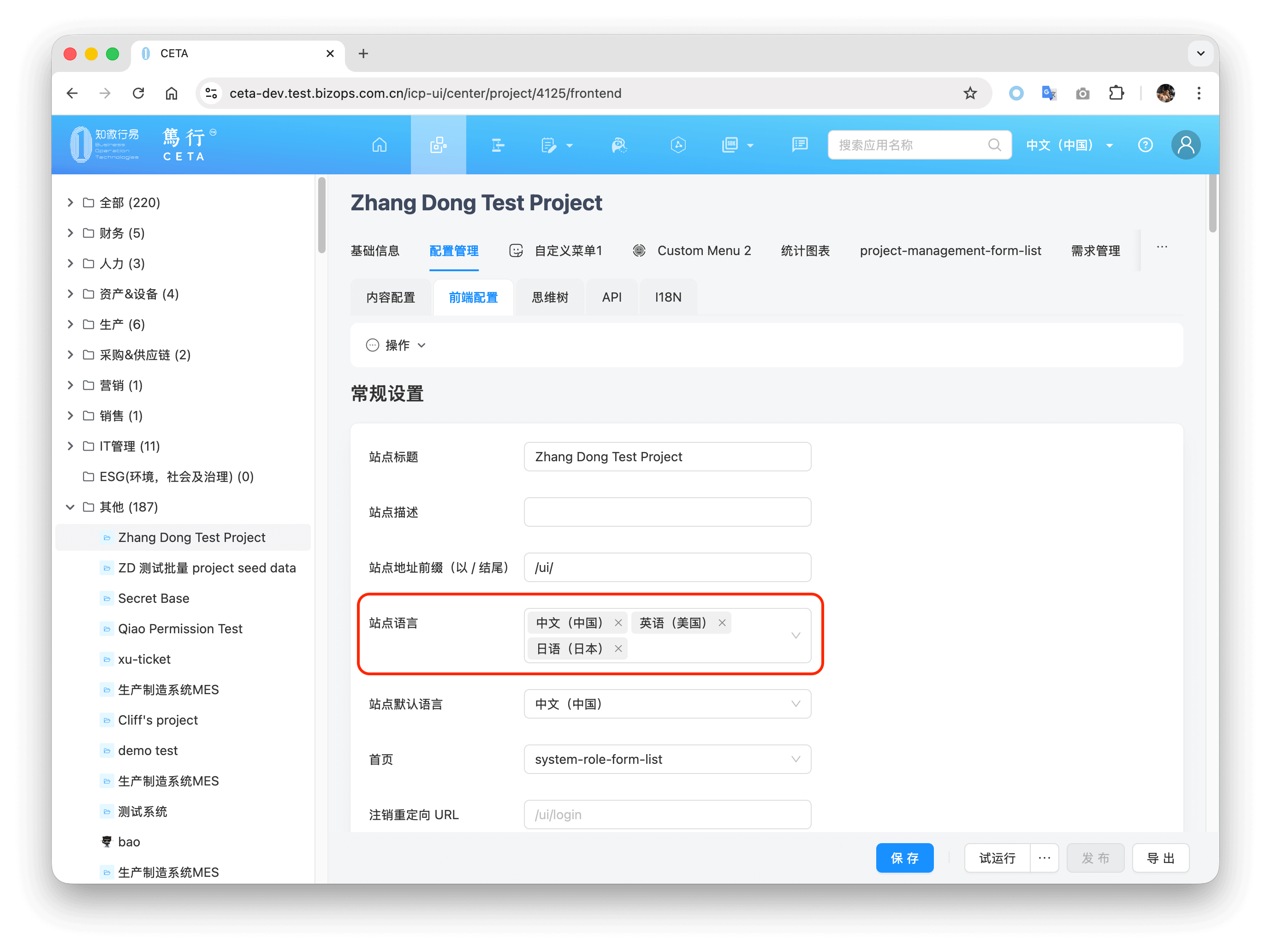
In the application's i18n management interface, click the menu Generate Application i18n Key:
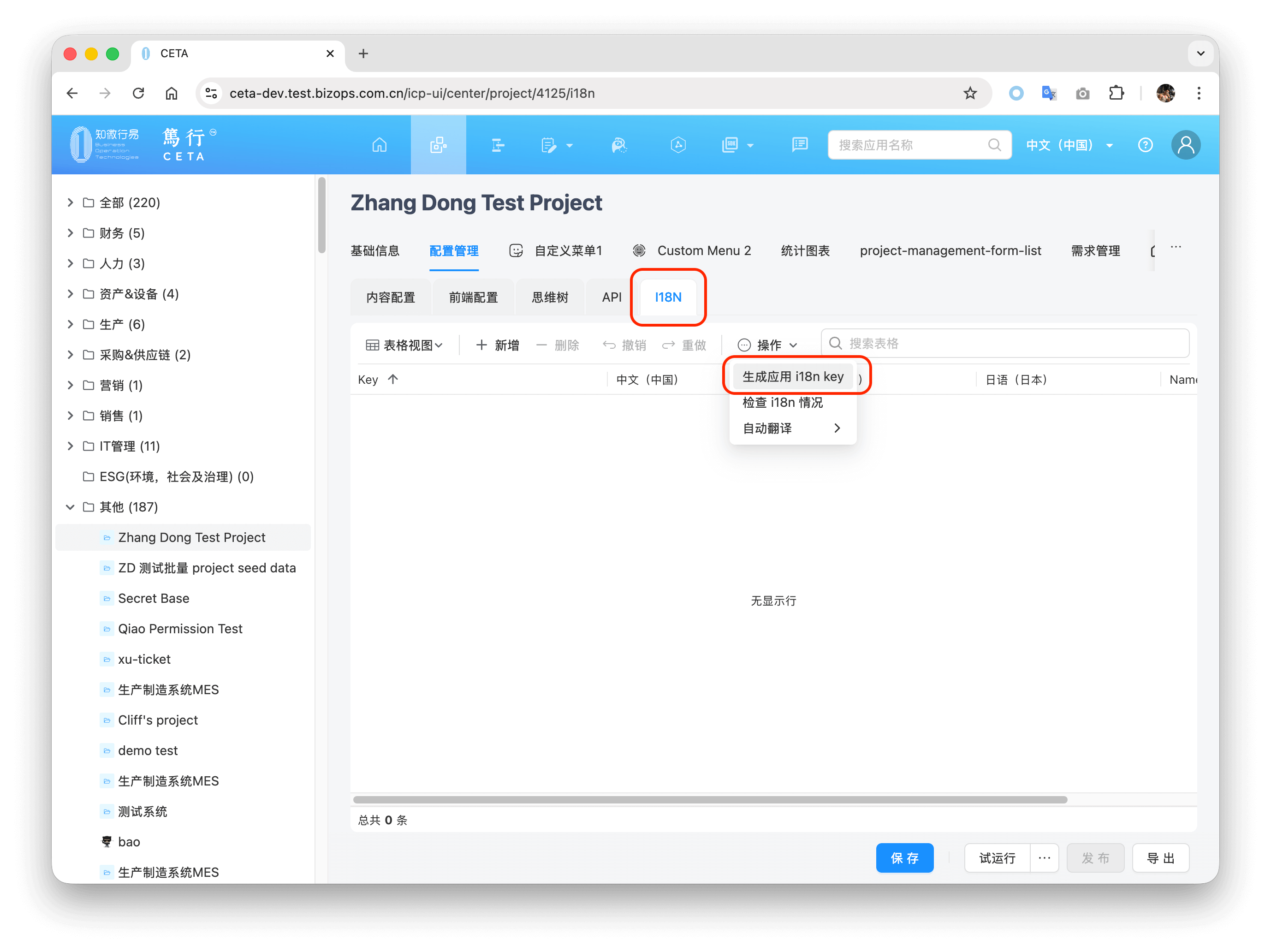
This operation will ask for confirmation whether to Overwrite existing i18n keys and regenerate new i18n keys.
- If you check the confirmation box, all existing i18n keys for all forms and all pages in the application will be deleted, which will invalidate existing translations. This is intended for scenarios where the application has a lot of dirty data and you want to completely re-translate it from scratch.
- If you do not check the confirmation box, it will not affect existing translations, and will only scan content that is untranslated.
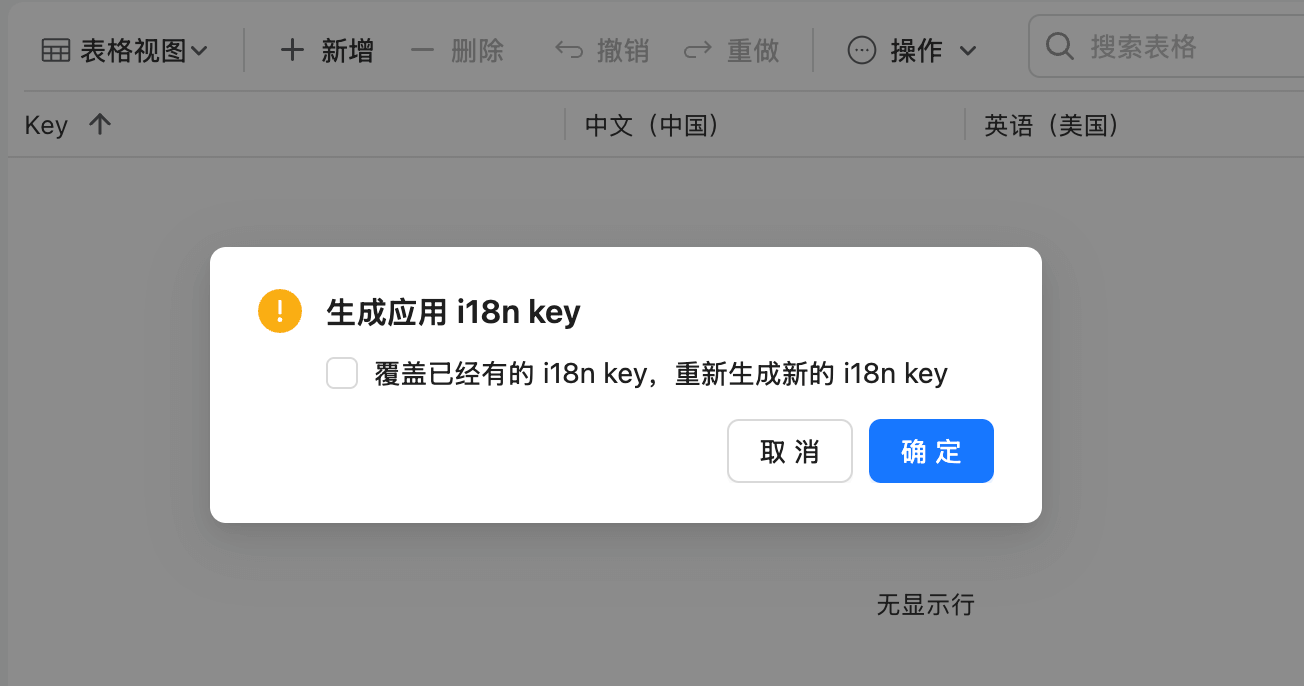
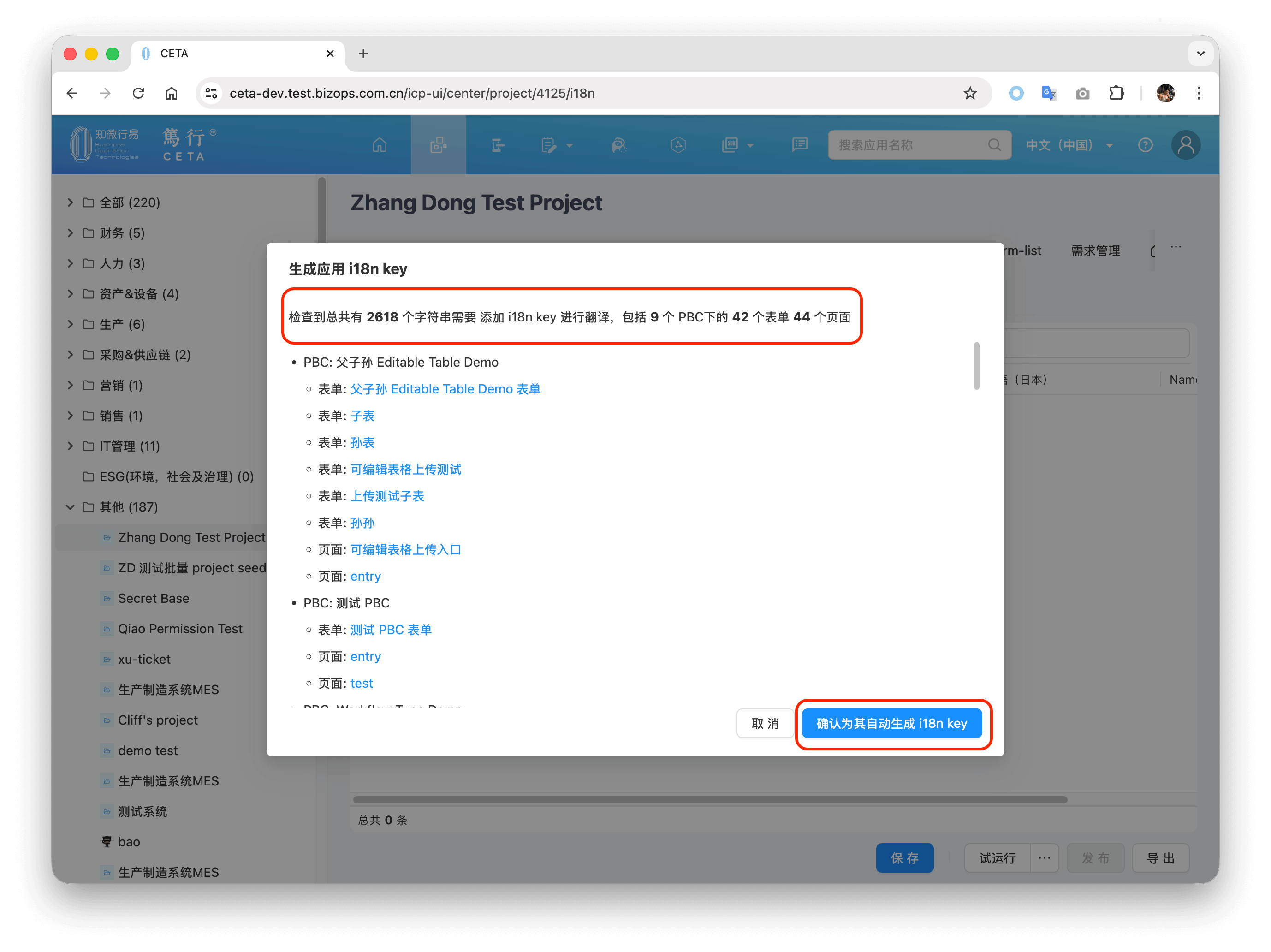
This operation scans all forms, all pages under all PBCs, and all resources that require translation under the front-end configuration for the entire project. For example, in the application example shown in the figure above, a total of 2618 strings need multi-language translation.
At this time, you can:
- Click the button Confirm to continue generating i18n keys for it, which will batch operate to continuously generate i18n keys for all forms, all pages, and the scanned results in the front-end configuration.
- You can also click the links for forms and pages to enter the form and page to translate a specific form and page individually.
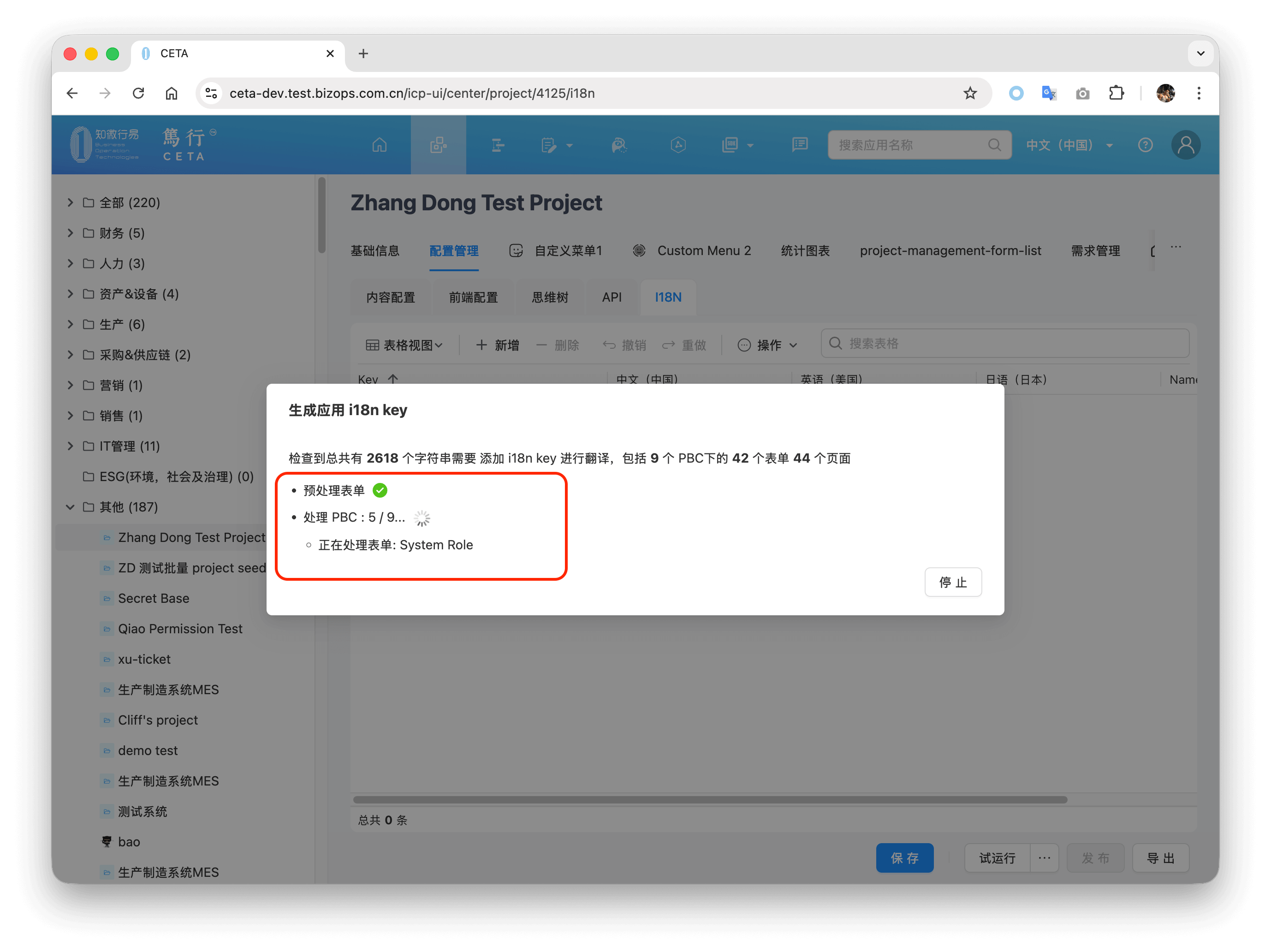
If you select Confirm to continue generating i18n keys for it, a batch operation will be performed, which may take anywhere from a few minutes to over ten minutes depending on the size of the application. At this time, do not close the browser Tab, do not close the window, keep the computer running normally, and just wait for the result.
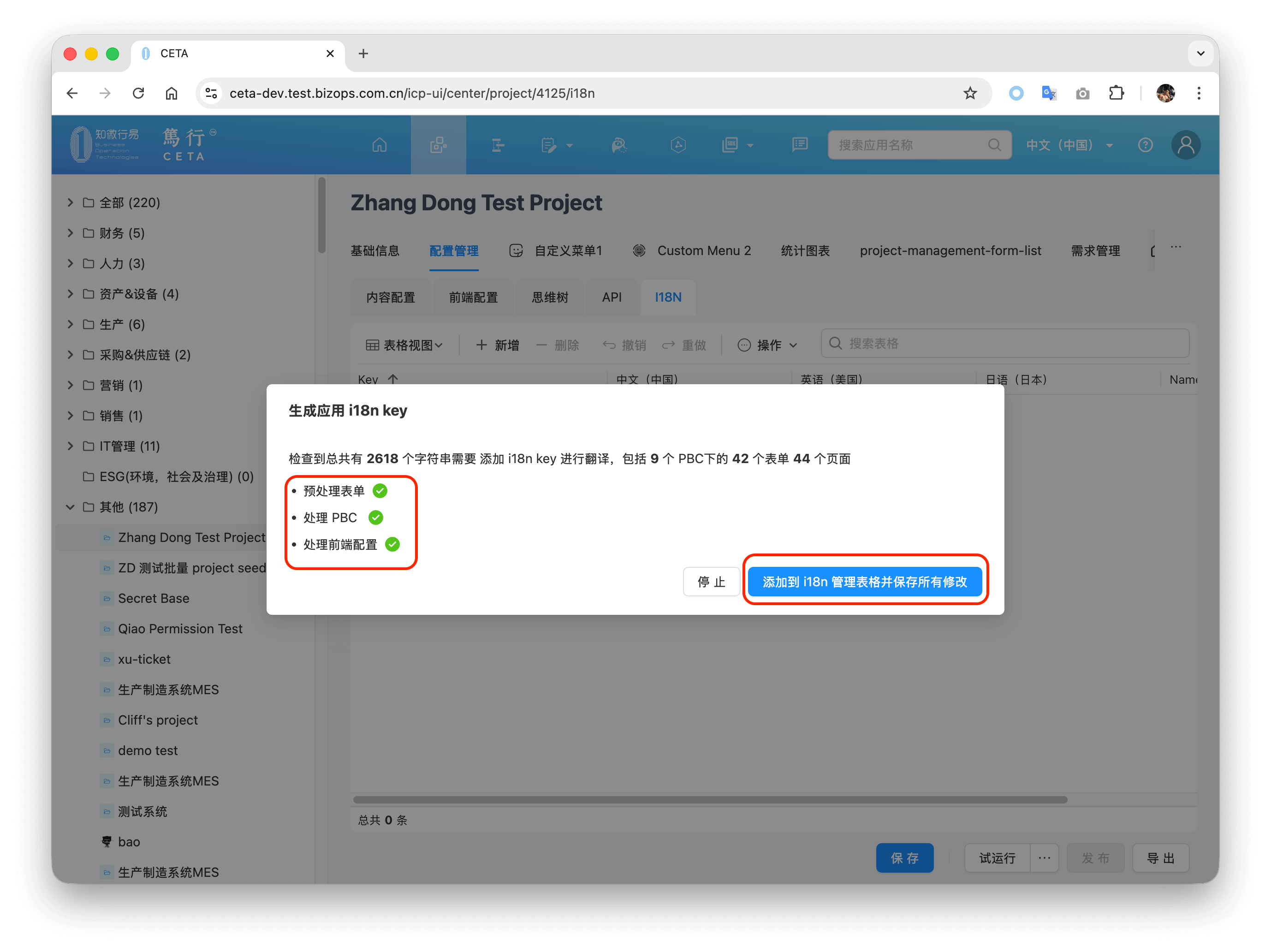
After all operations such as pre-processing forms, processing PBC, and processing front-end configuration are successful, click Add to i18n Management Table and Save All Changes. This will save all modifications.
Manual/Automatic Translation
After the i18n keys have been added by the above operation, the i18n management table will automatically display the added i18n keys. At this time, you can manually translate resources one by one in the i18n management table, or you can call the AI interface for automatic translation.
Manual translation: Double-click the table cell to edit.
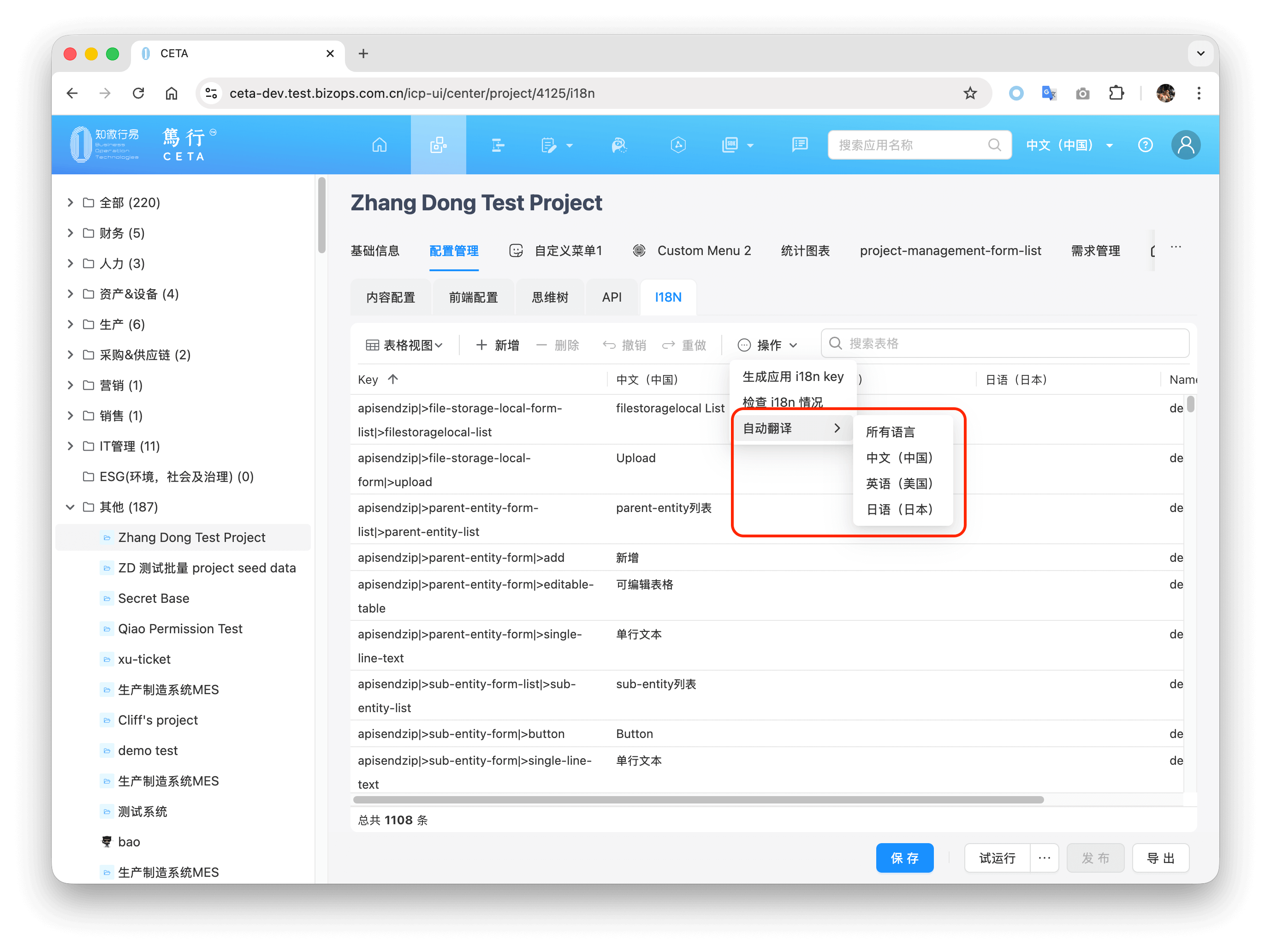
Automatic translation: Click Operation -> Auto Translate, select the language for automatic translation. Or Right-click on the cell -> Auto Translate.
If it takes a long time, a progress Dialog will appear showing the current progress. Just wait for the operation to succeed, which may take anywhere from a few minutes to over ten minutes depending on the size of the application.
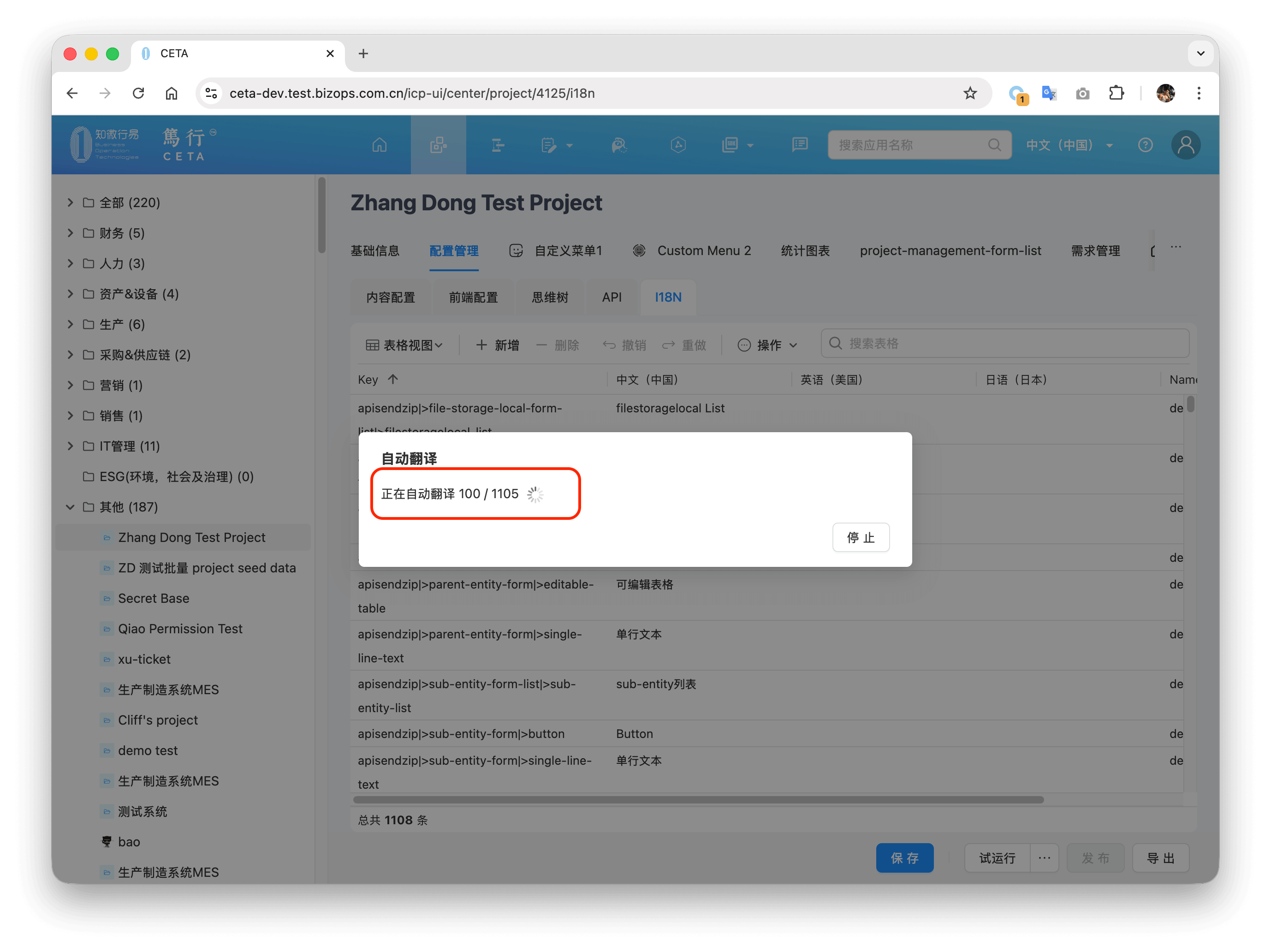
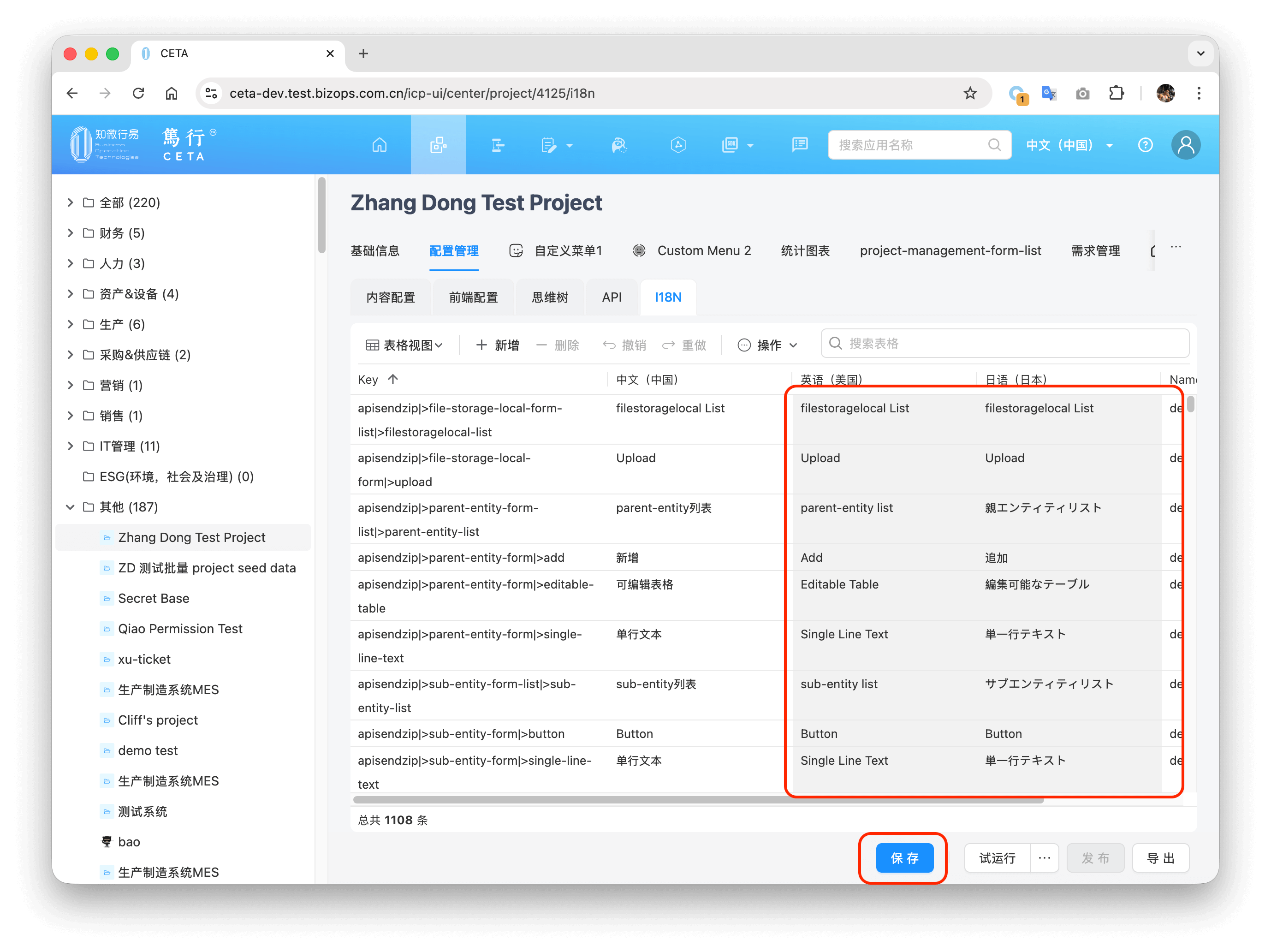
After success, the progress Dialog will automatically close. At this point, the grey cells in the table below indicate translated content with changes, and you can click Save:
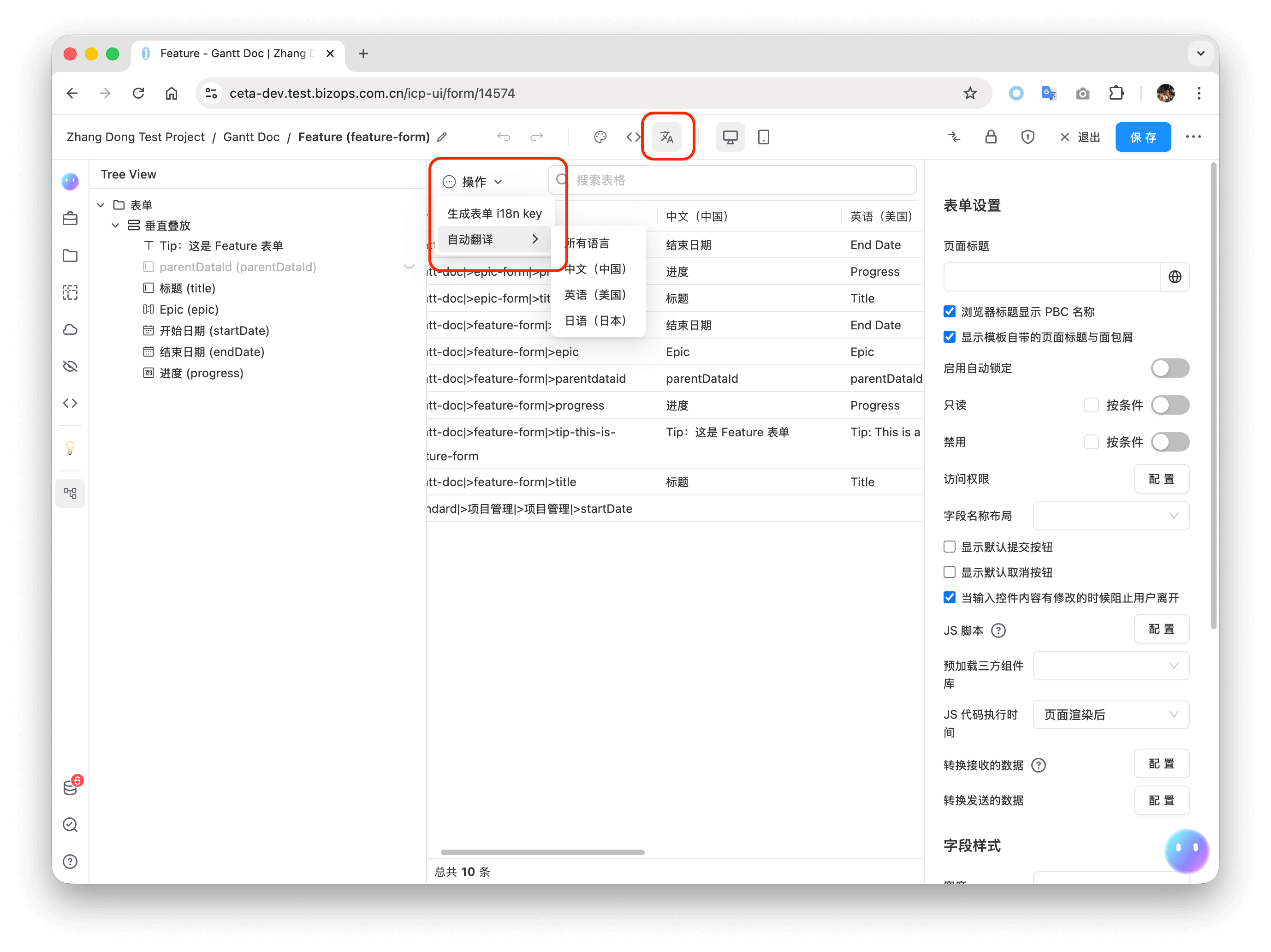
Translating Forms/Pages
Open the form/page designer and click the i18n management button at the top. The operation is the same as above.
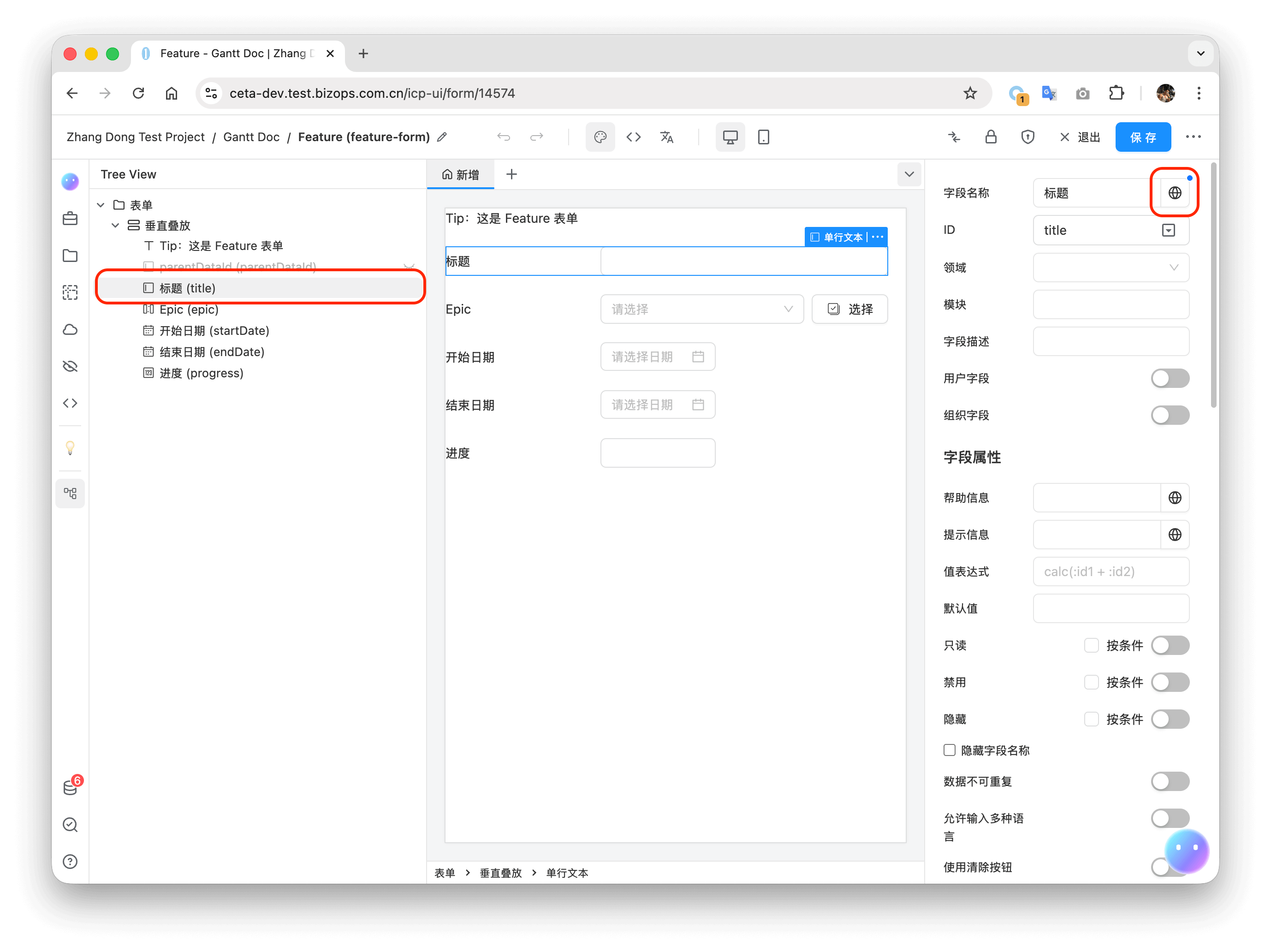
Translating a Single Field
- Select the field in the form designer and click the globe icon for the corresponding attribute string.
- Manually add an i18n key in the opened pop-up window, or use the automatic Operation -> Generate. Namespace is the naming space for the Key, and usually does not need to be filled in.
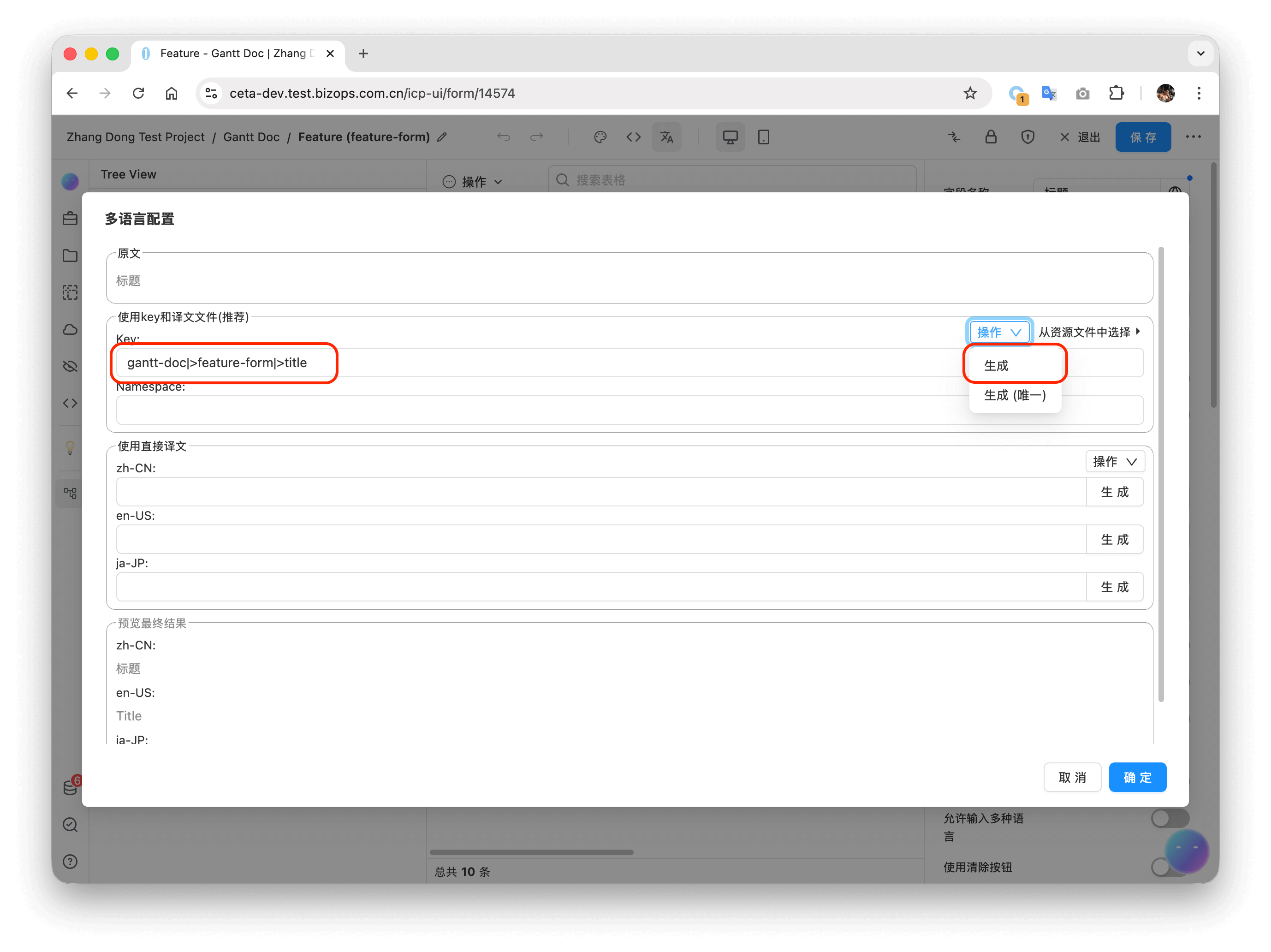
- Open the i18n management interface of the form designer, and either manually edit or Right-click -> Auto Translate.
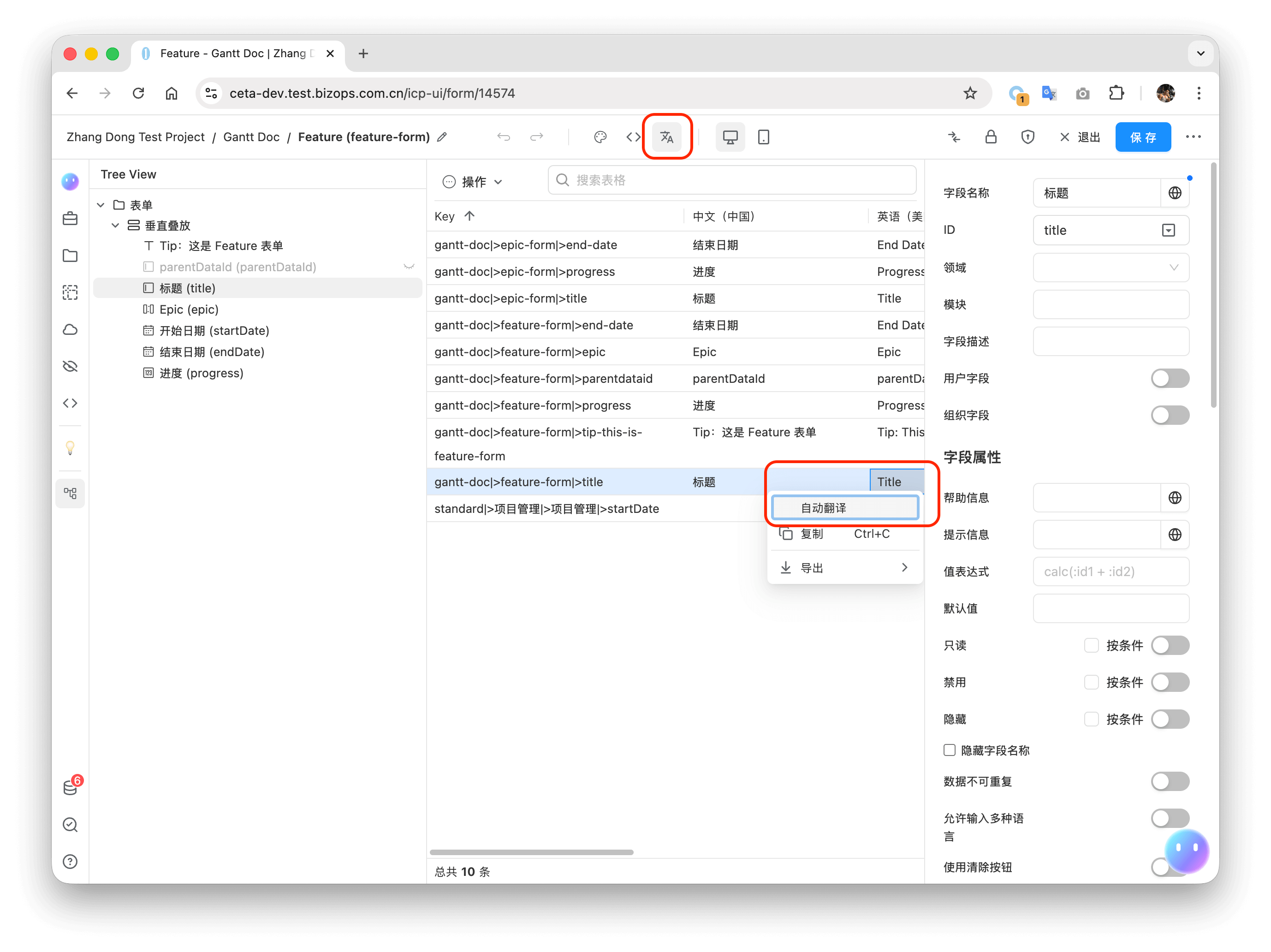
Translating Menus
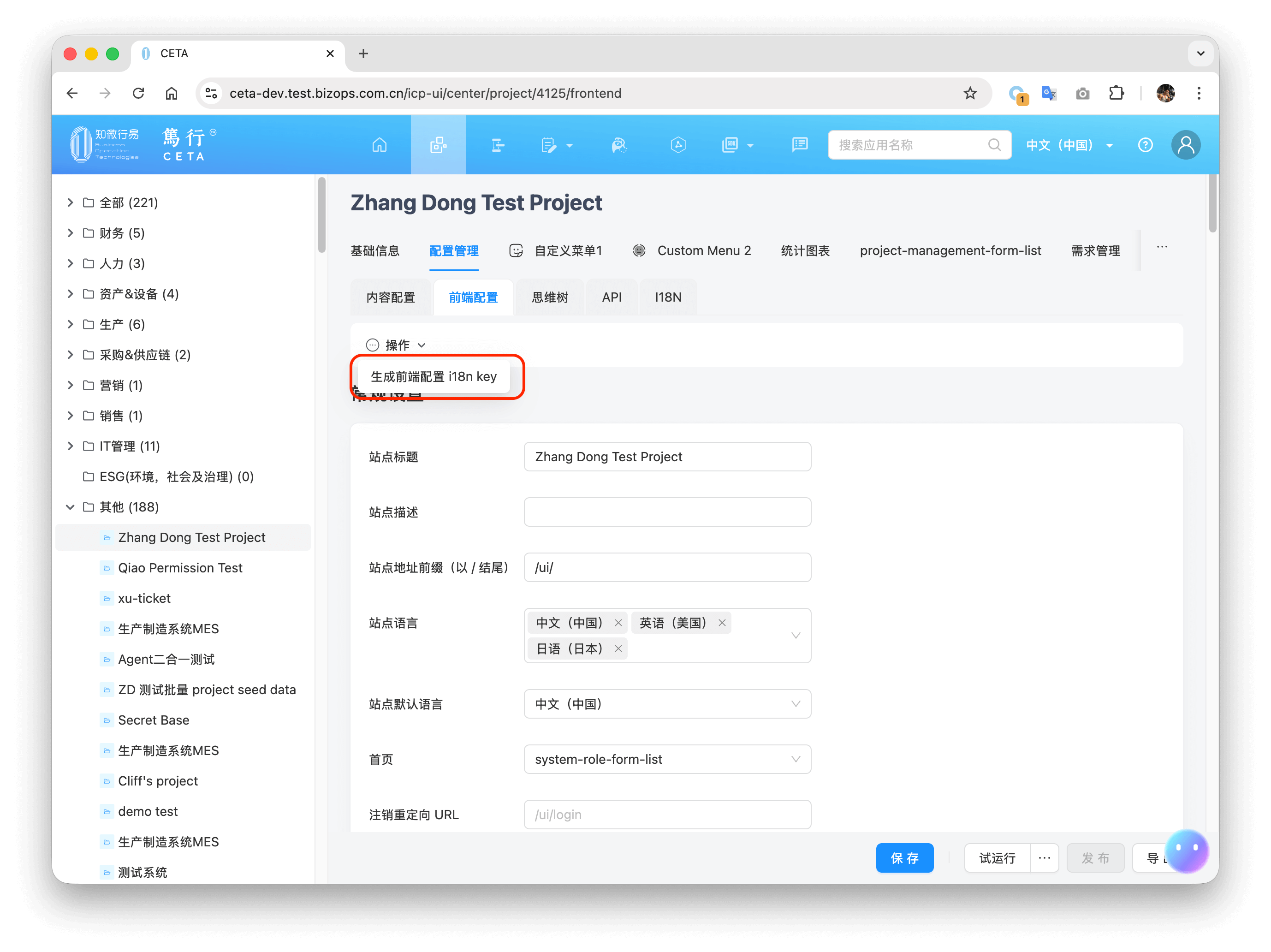
- Open the front-end configuration of the application and click Generate Front-end Configuration i18n Key.
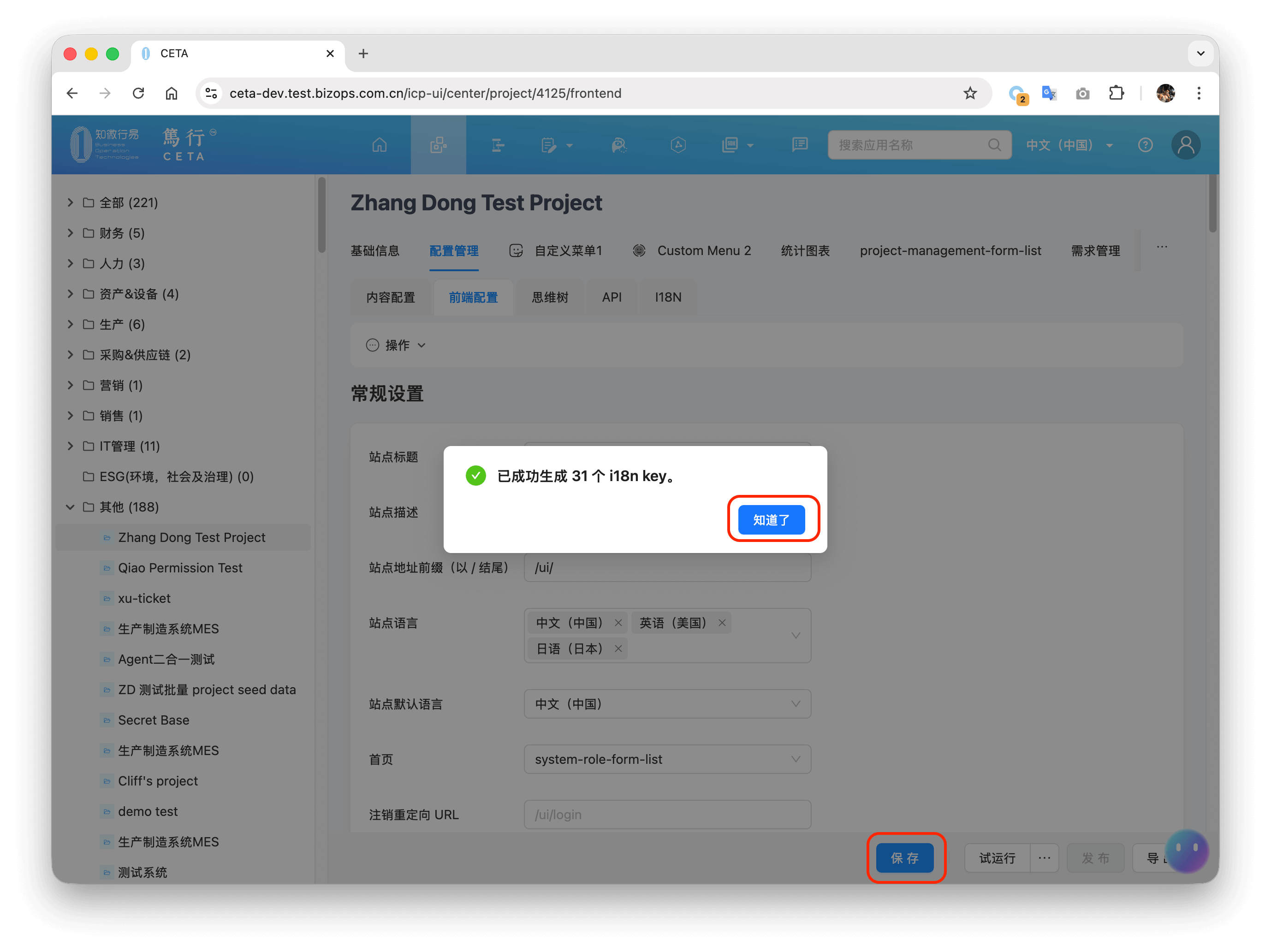
- After successful generation, click the save button to save the front-end configuration.
- Go to the project's i18n management interface for manual or automatic translation. Refer to the application's Manual/Automatic Translation
Checking Untranslated Resources in the Application
- Open the application's i18n management interface and click Operation -> Check i18n Status.
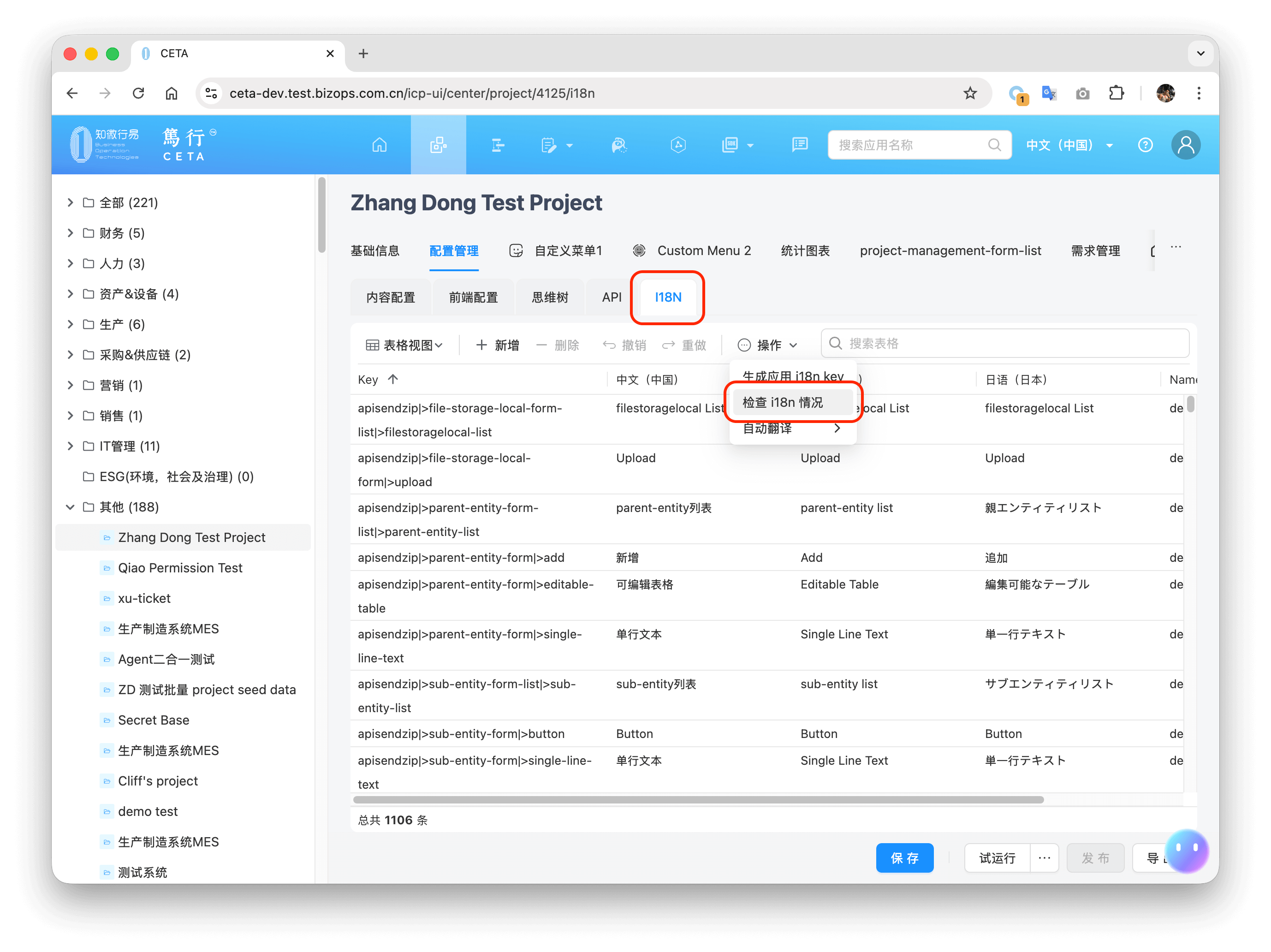
- Then, based on the scanning and analysis results, you can click the corresponding button to perform the corresponding operation, and then click the save button to save.