Automatic Organizational Tree Permission Implementation
1. Configure Forms
1.1 Configure User and Organization Fields in Forms
To use automatic organizational permissions, you need to configure user and organization-related fields in the forms.
- Configure the user ID field (Note:
userIdis a reserved field and cannot be used in forms. Use another name such asownerId). Select this field as a user field.
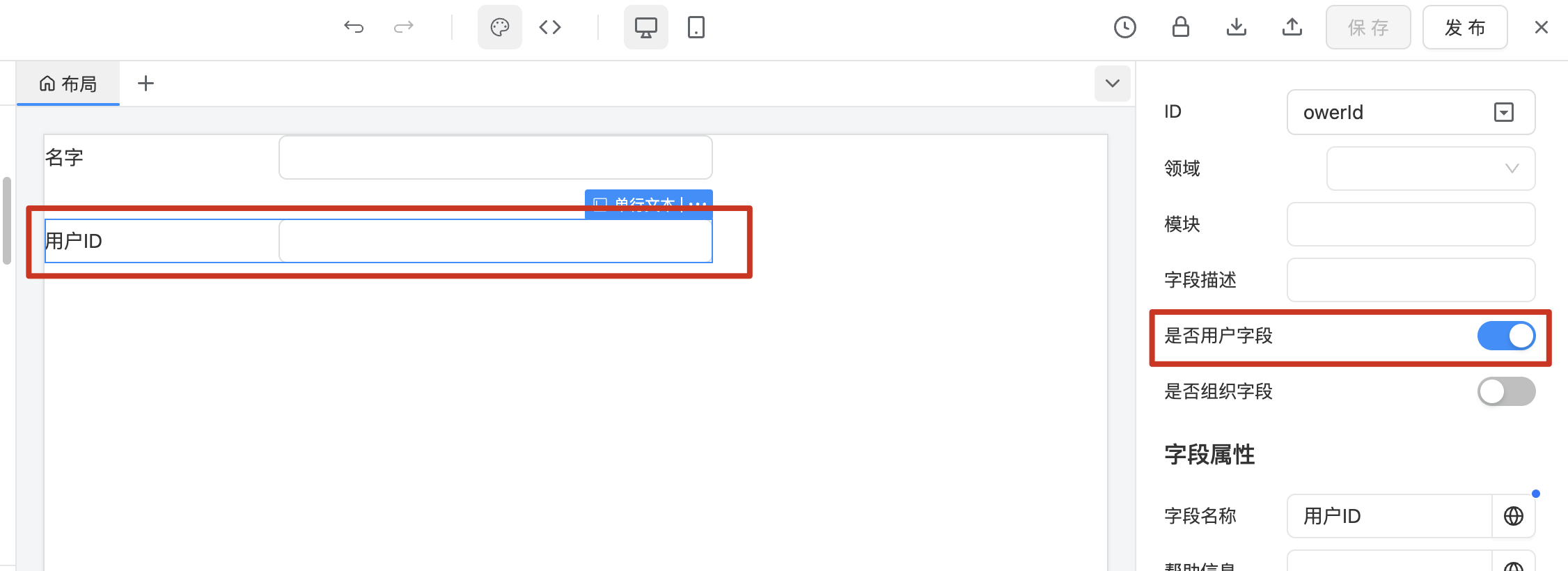
- Configure the organization field. Set this field as an organization field.
Note: If the organization is an ACL or Select, it should be a single-select attribute.
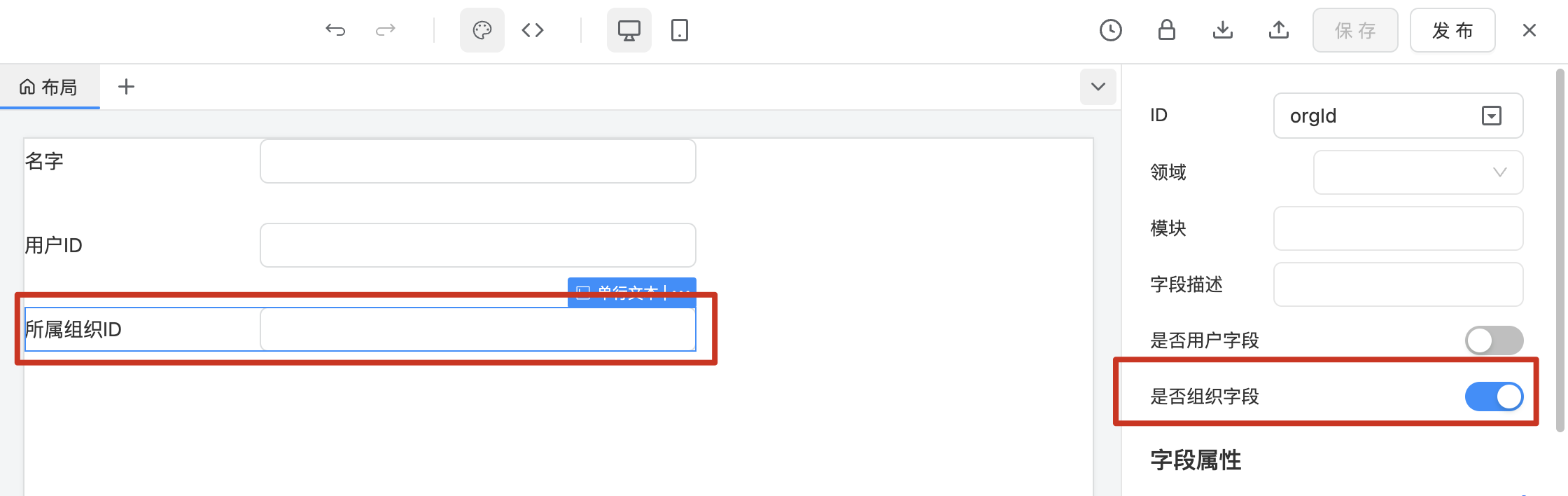
1.2 Configure Forms to Use Organizational Tree Data Permissions
In the form permission configuration section, select the option "Use organizational tree data permissions".
2. Configure Permissions
For the above forms, configure the relevant permissions in the permission configuration page.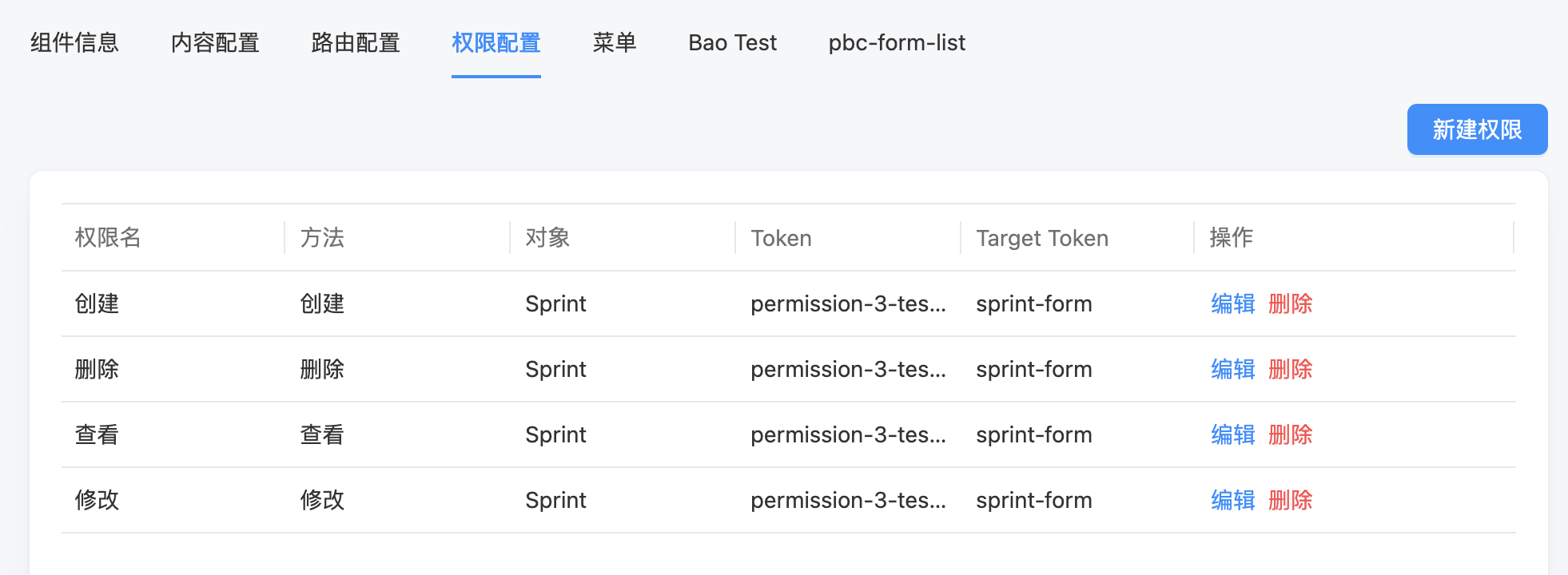
3. Create Roles on the Organizational Tree and Configure Role Permissions
3.1 Add Roles to the Corresponding Organization and Select Relevant Permissions
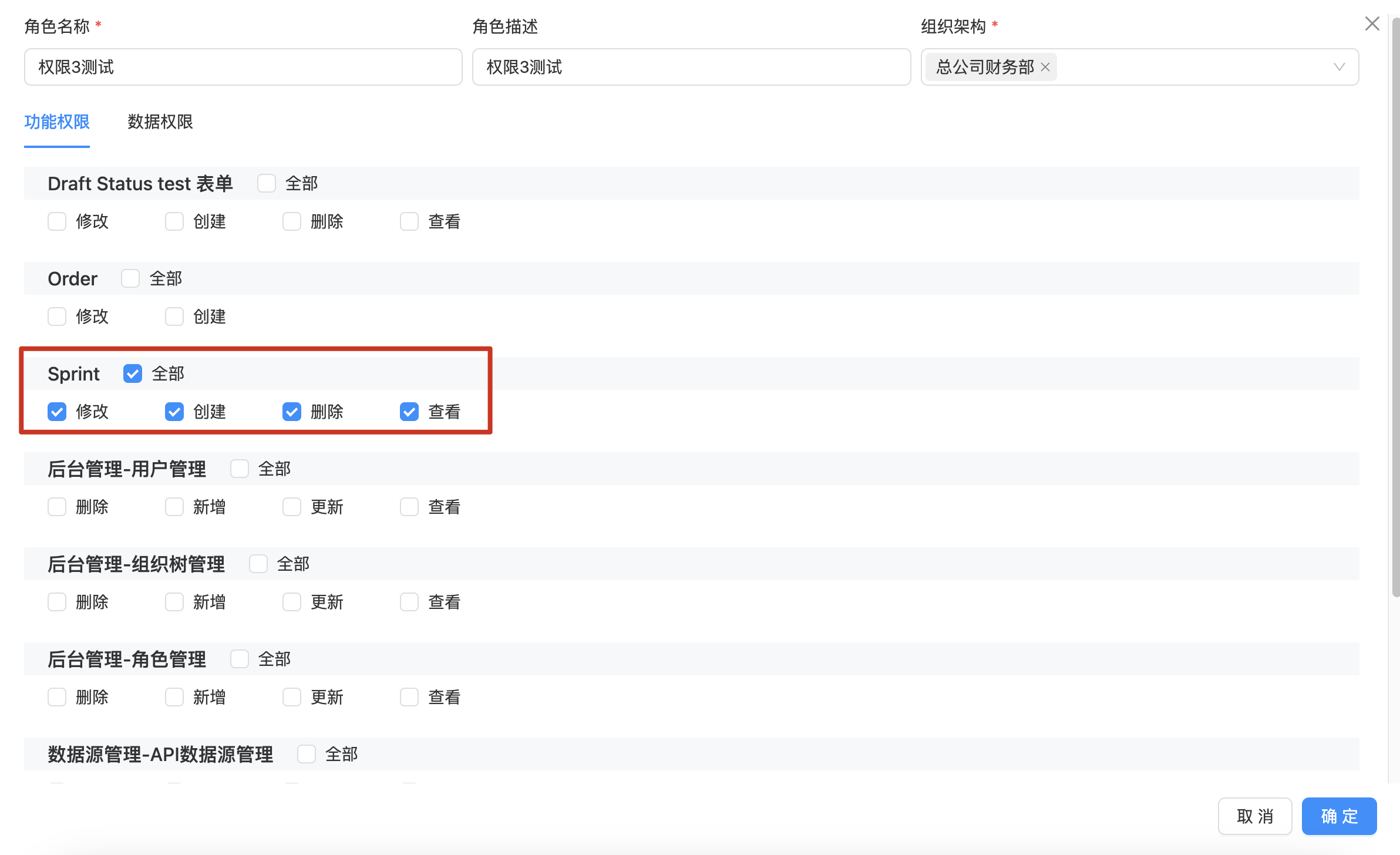
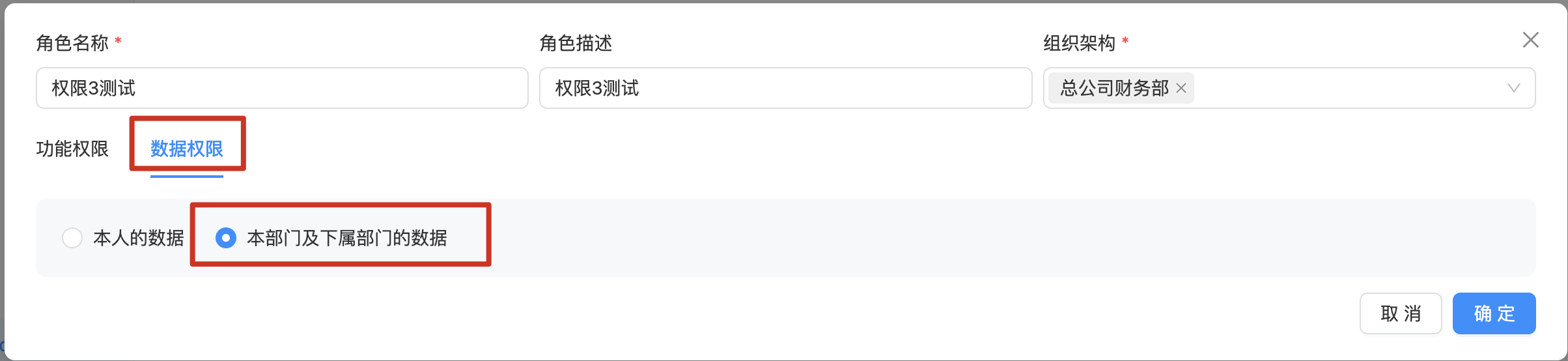
3.2 Select Data Permissions for This Department and Subordinate Departments
4. Test Permission Implementation
Create relevant data for the organization and its subordinate organizations and test the permission implementation.