Local Development Example
In all page examples, the project backend API service uses the online platform project try run address: https://zhangdong-test-project.ceta-dev.test.bizops.com.cn/
Preparation
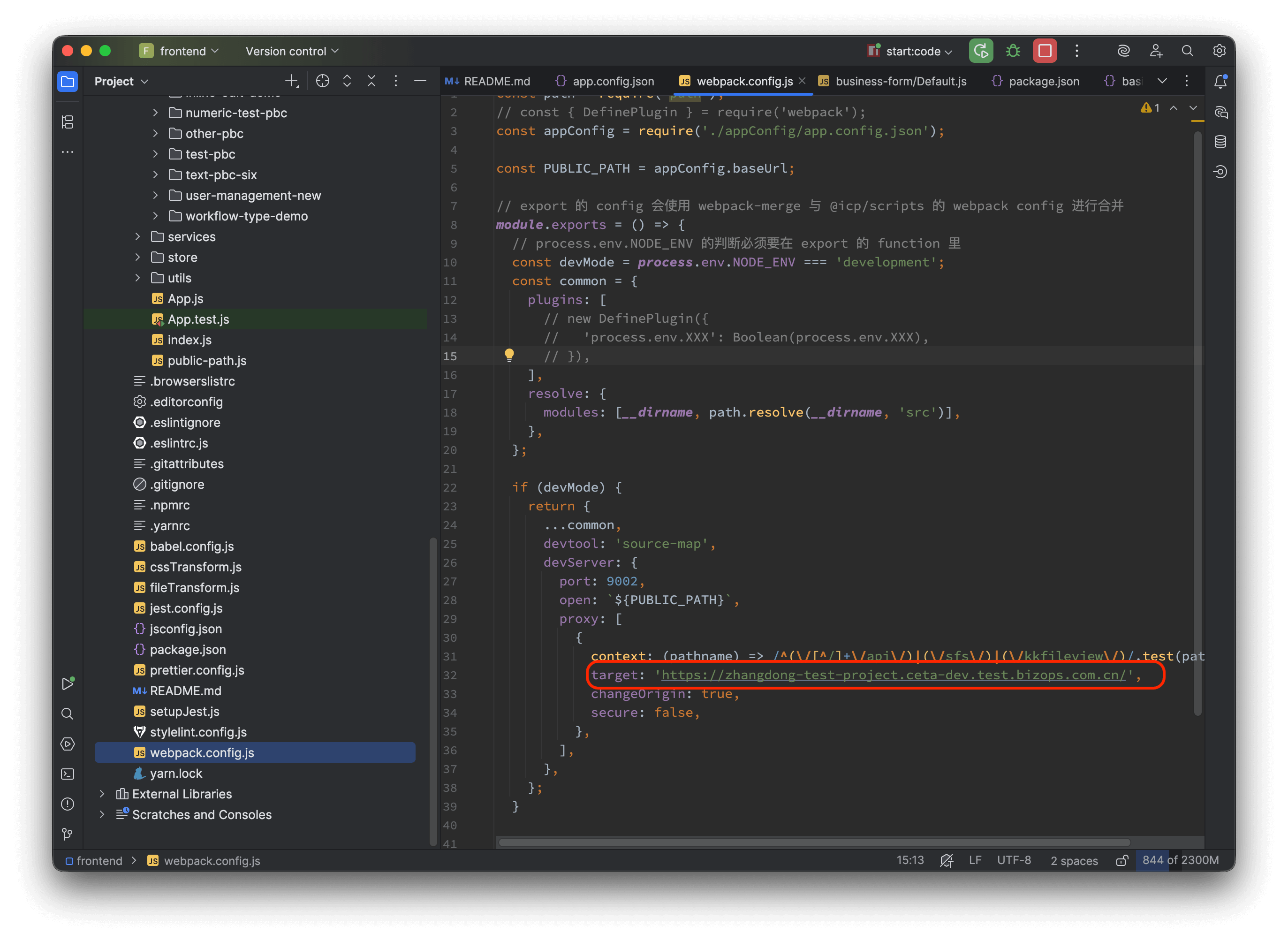
Modify the project's webpack.config.js proxy address to your project's backend API service address:
Adding a Component Not Available on the Platform to a Form
Start the project using the form and page JS source code from src/pbcCode:
yarn start:code
This example adds Ant Design's Carousel component, which is not supported by the platform's component library: https://ant.design/components/carousel
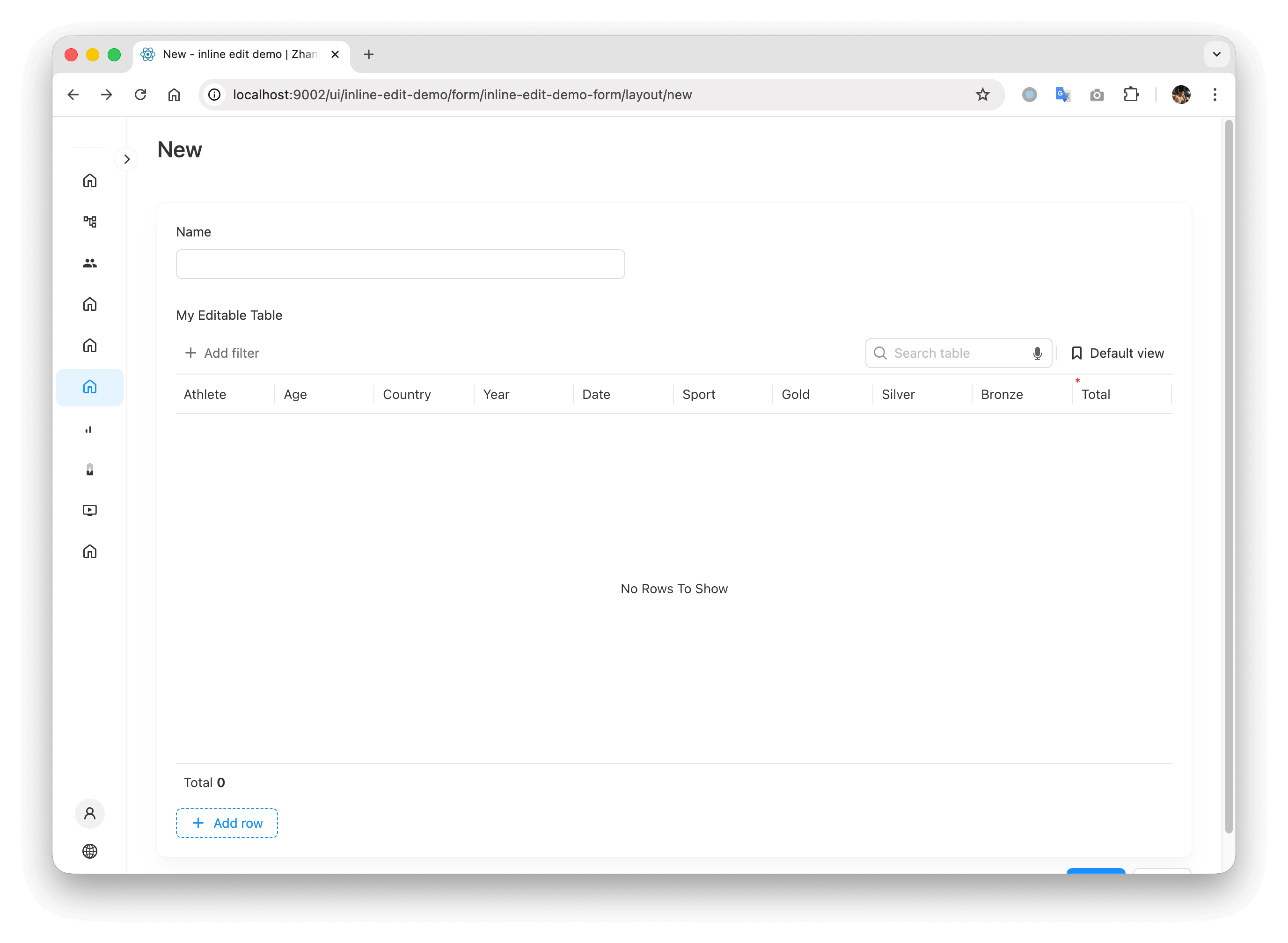
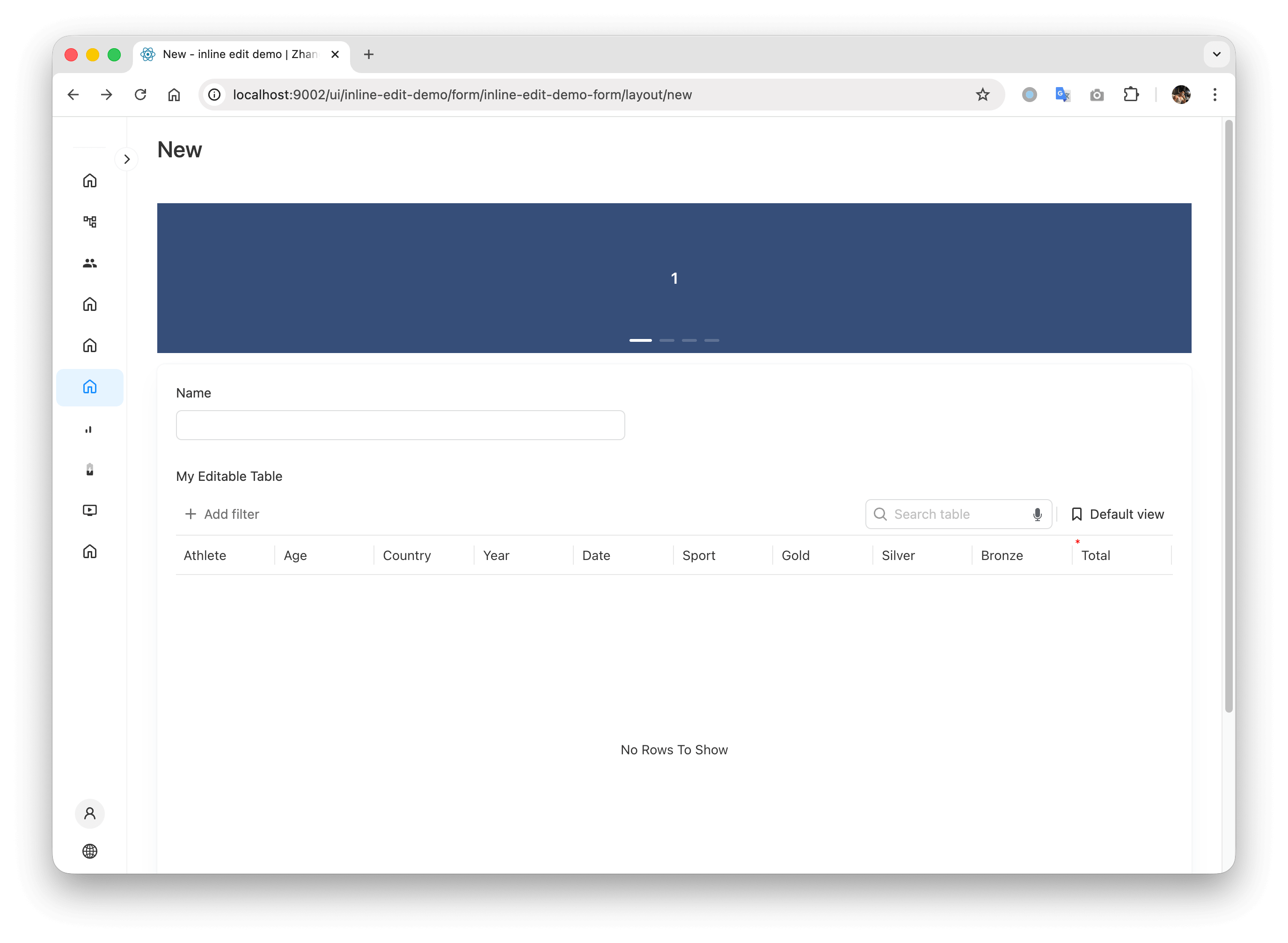
The form at the project address /ui/inline-edit-demo/form/inline-edit-demo-form/layout/new looks like this:
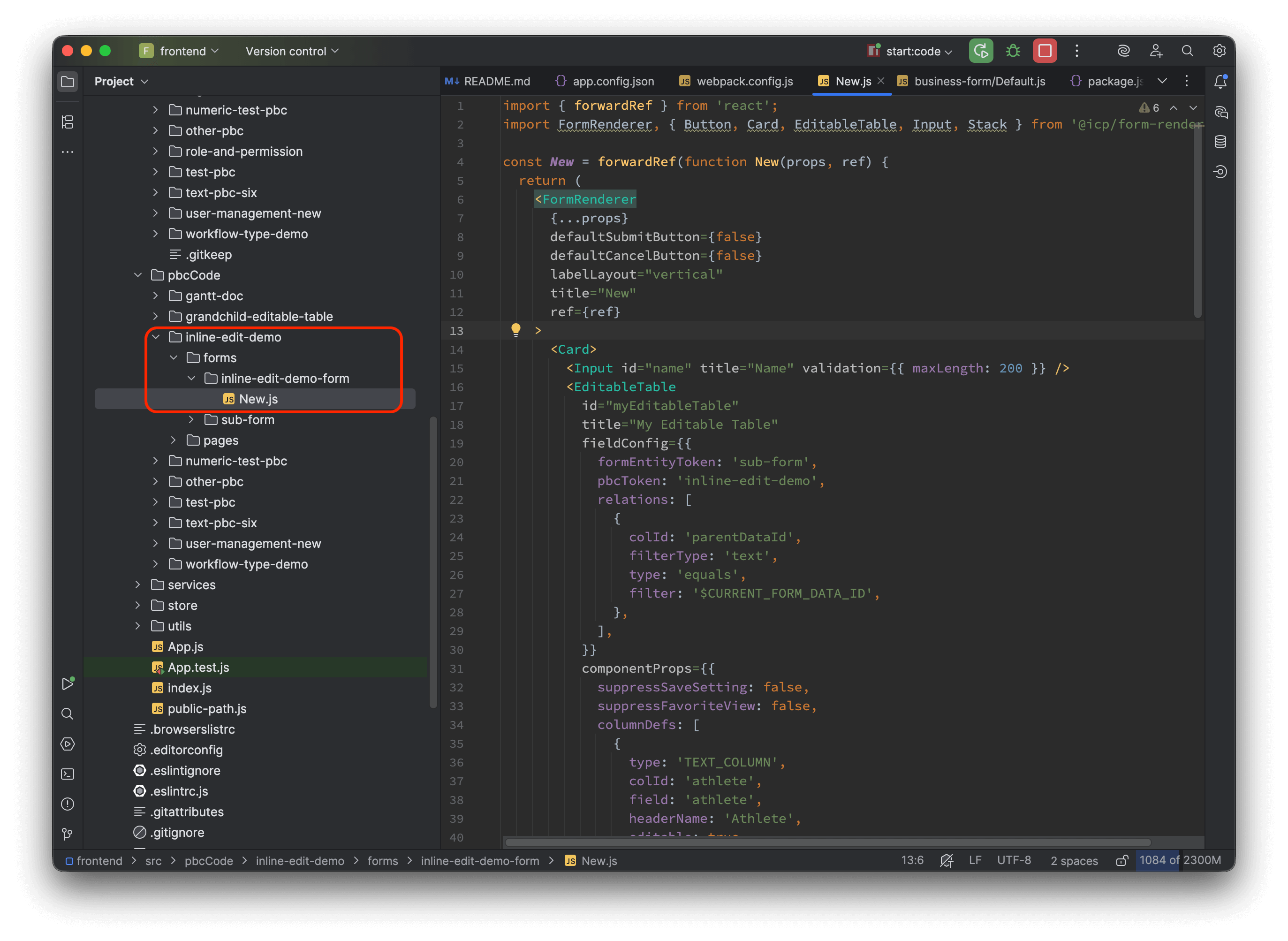
The corresponding JS file code is as follows:
Now we want to add an Ant Design Carousel component to this layout.
Following the Ant Design official example, add the following code:
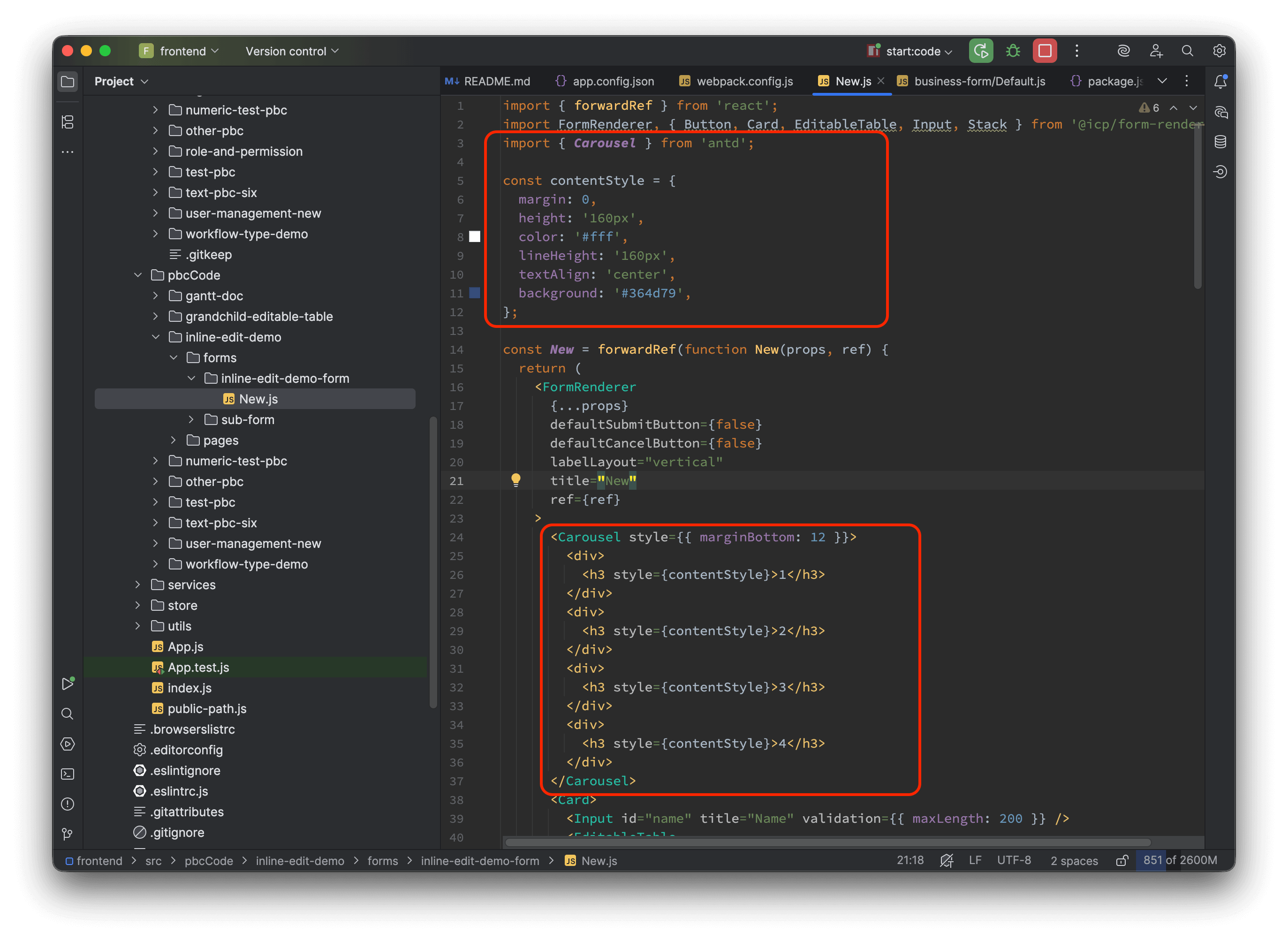
The final effect is as follows:
Developing a Completely Independent Page
This example adds a completely custom-developed page, independent of PBC forms and pages.
This example is unrelated to the JSON source code in src/pbc or the JS source code in src/pbcCode, so either project startup script can be used:
yarn start
or
yarn start:code
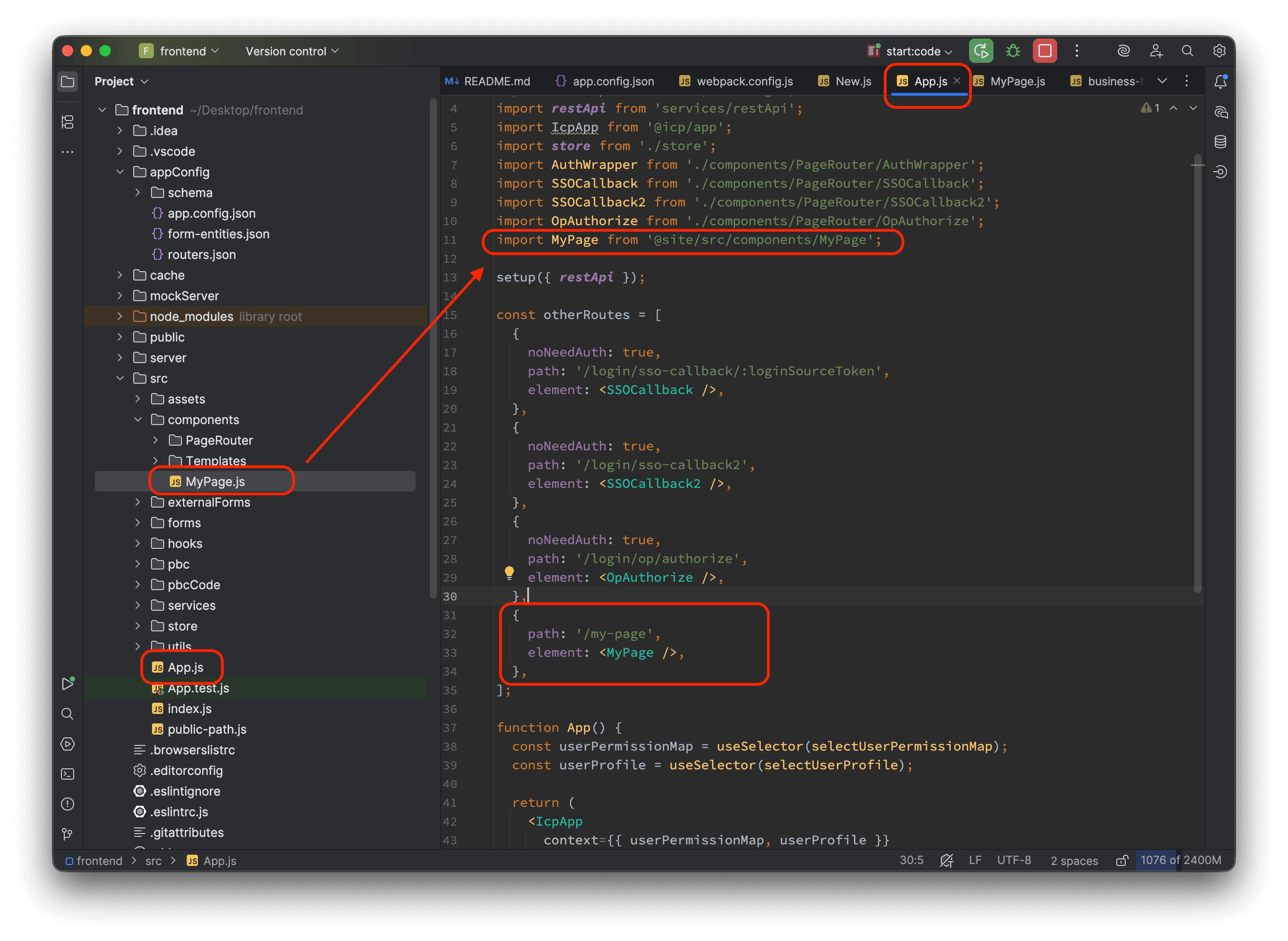
Step 1: Add a custom route and a custom page component in App.js, and import the component.
Step 2: Access the page via the menu or a link.
Based on the custom route in the previous step, the page access address is /ui/my-page.
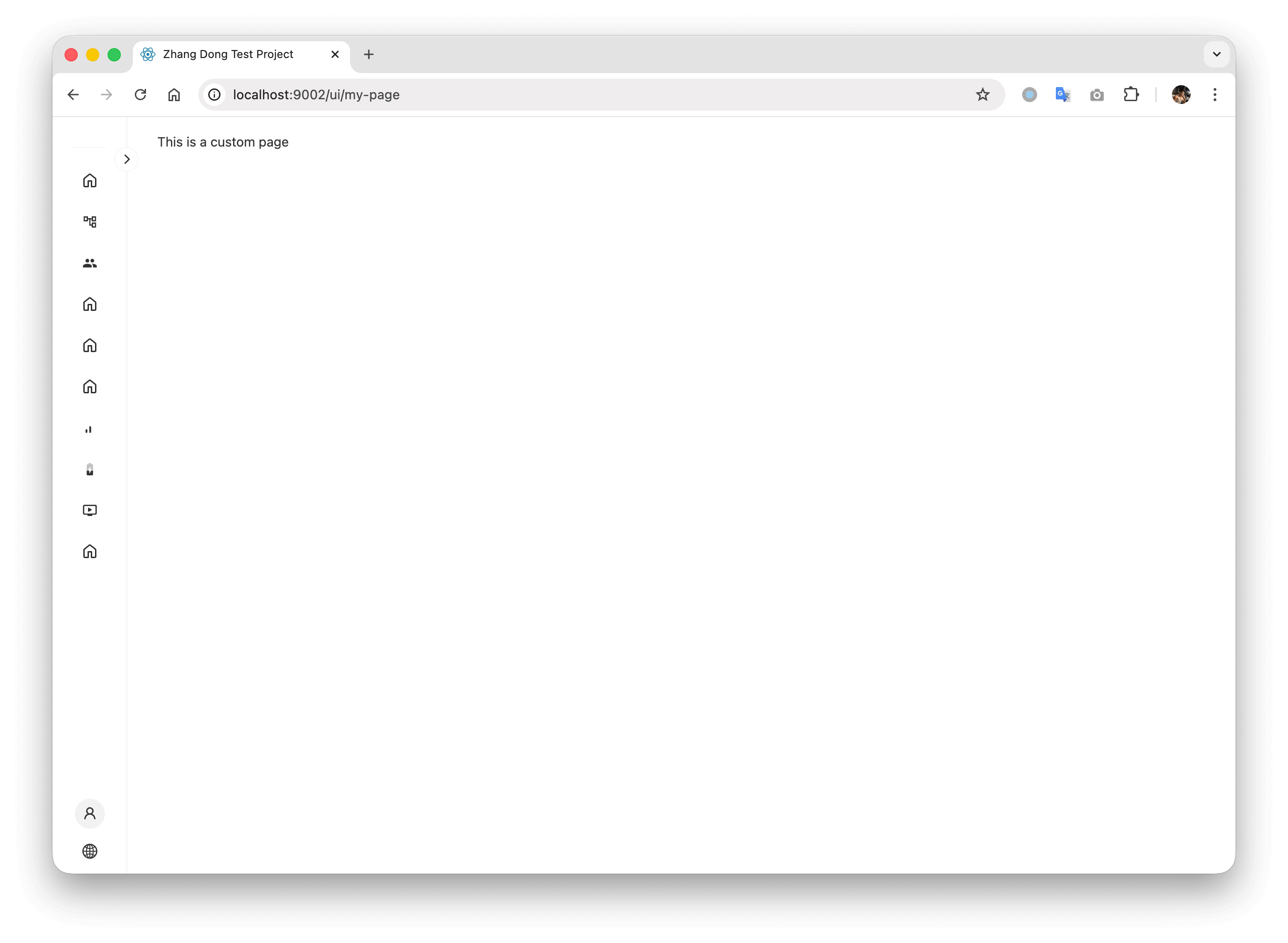
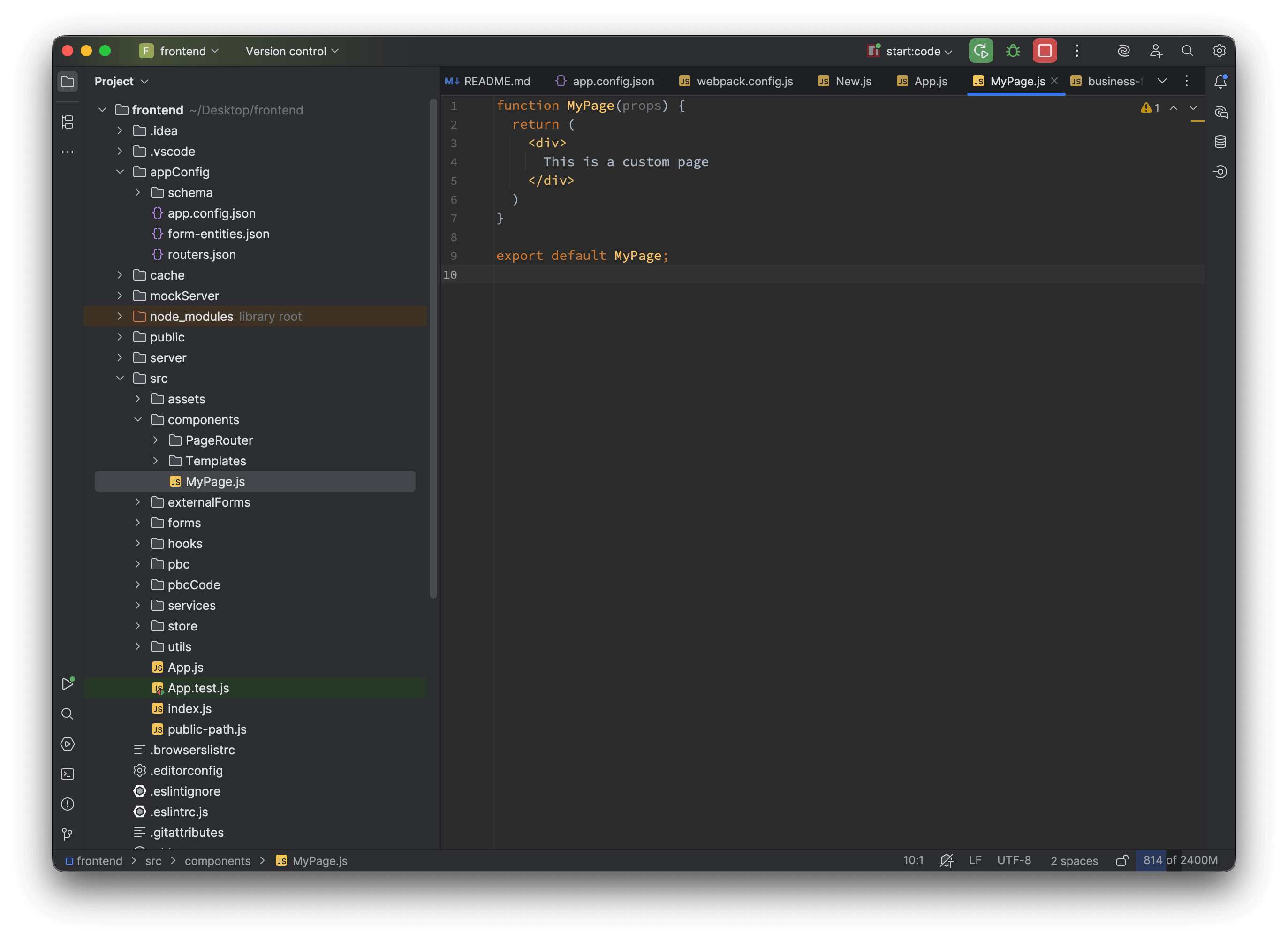
Step 3: Write any JS code.
Manipulating Tables
Start the project using the form and page JS source code from src/pbcCode:
yarn start:code
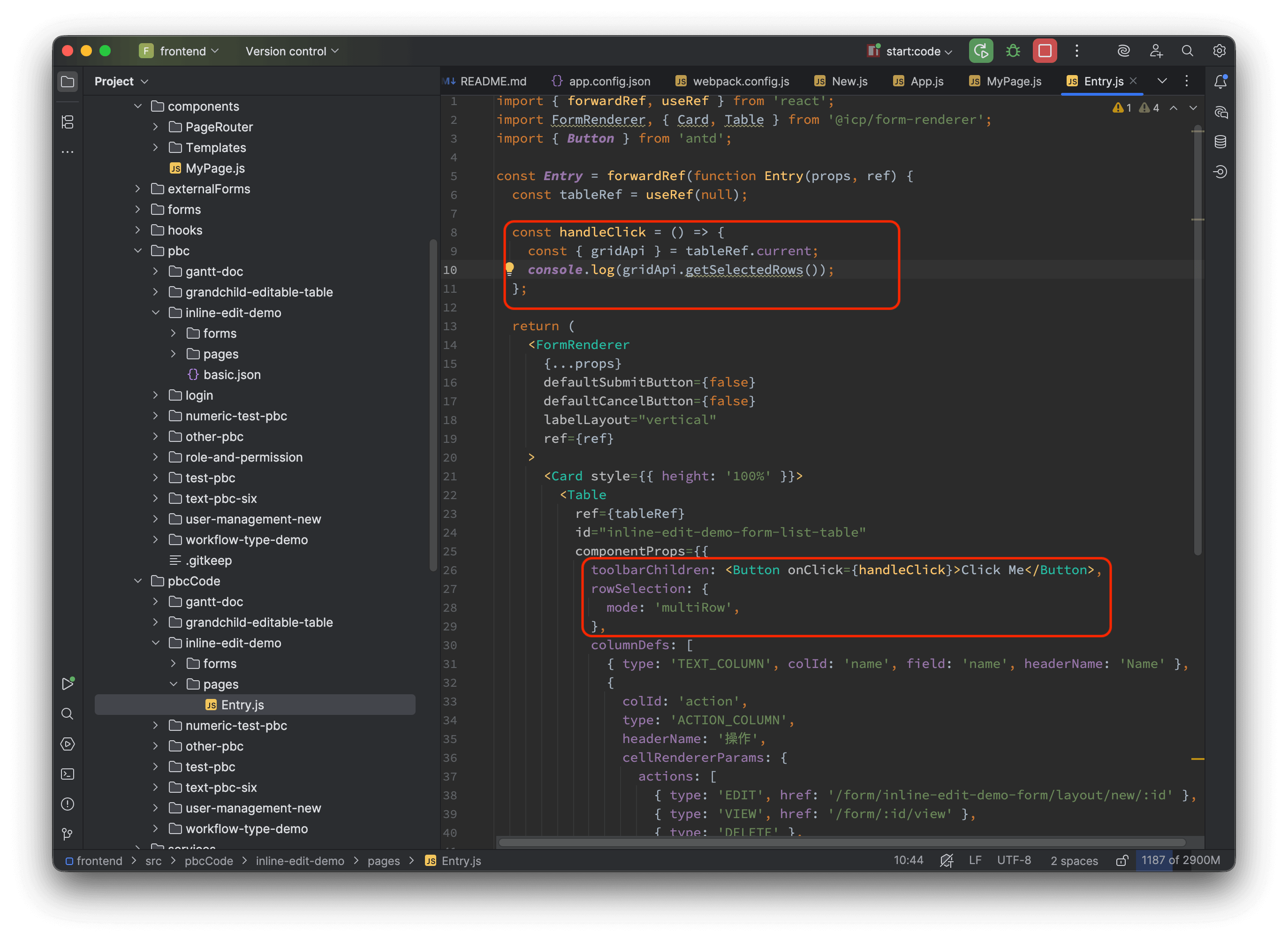
The example code below shows how to add a custom button to the table toolbar to get and manipulate the data of selected rows:
Introducing a Third-Party Chart Library to Develop a Custom Dashboard
This example adds Recharts, a third-party open-source chart library not supported by the platform. Official documentation: https://recharts.github.io/
This example is unrelated to the JSON source code in src/pbc or the JS source code in src/pbcCode, so either project startup script can be used:
yarn start
or
yarn start:code
Taking the second example "Developing a Completely Independent Page" as a basis, we add a custom chart library to the custom page.
Step 1: Install the dependency by running the following command in the project root directory:
yarn add recharts -E
Step 2: Write the page code.
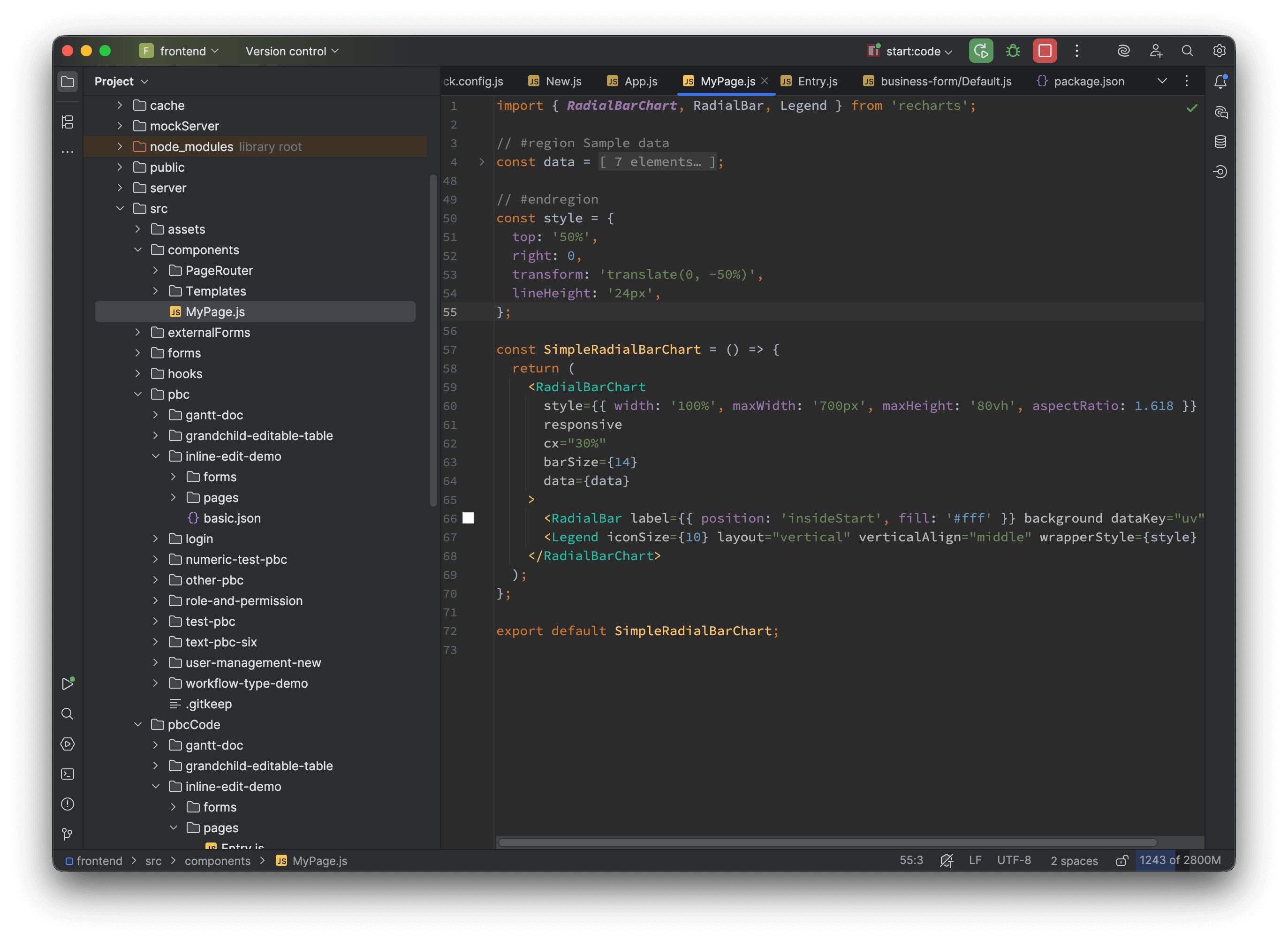
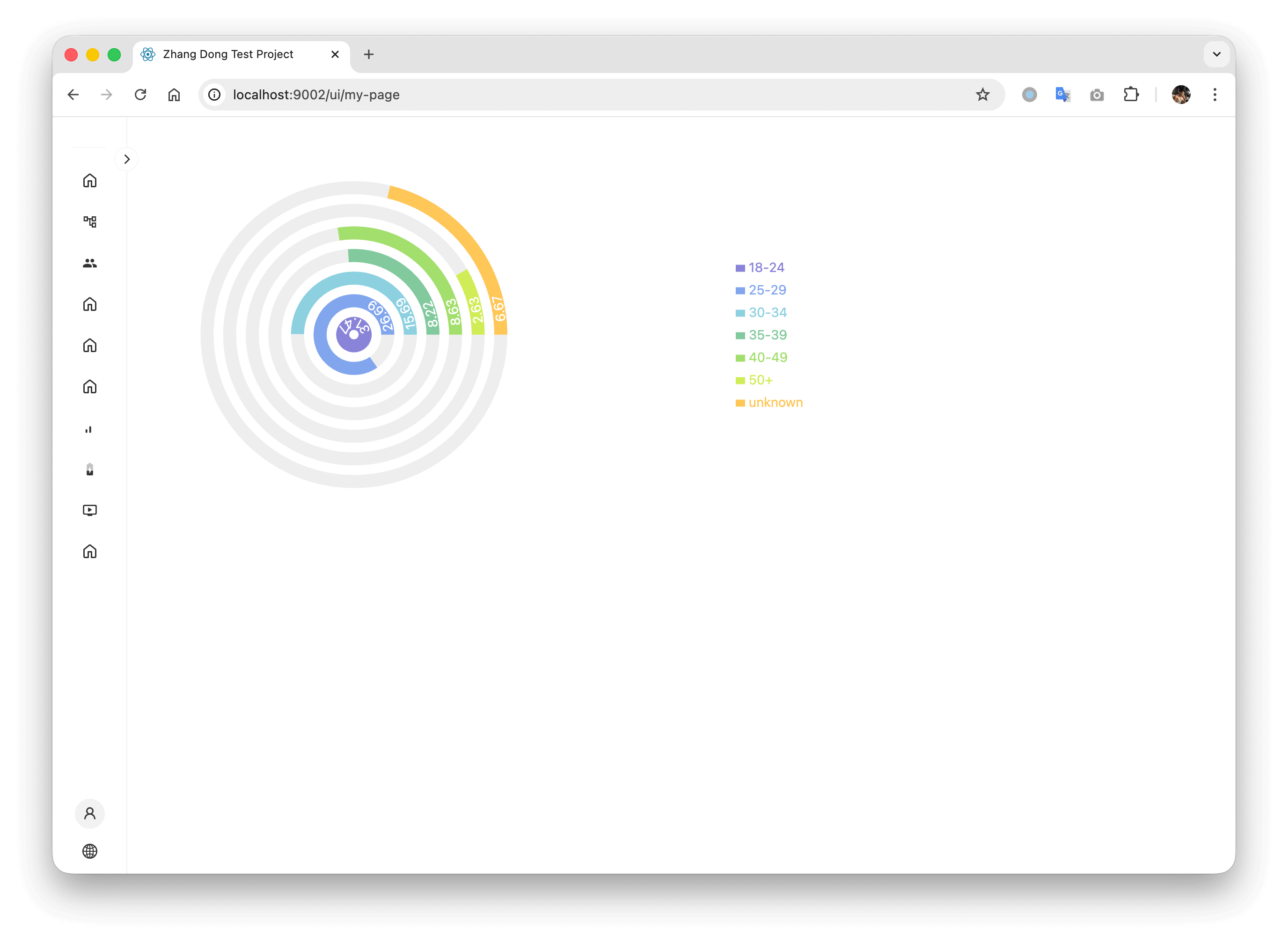
The source code for this example can be found here: https://recharts.github.io/en-US/examples/SimpleRadialBarChart/
The page effect when accessed is shown: