Using List
Using Input Components Inside a List
The List component supports placing input components such as Input and Select inside loop items. Data edited by users in each row is automatically written back to the form store and saved along with the form submission.
Prerequisites
- The List must have an
idconfigured. syncToFormData: truemust be enabled in the List'scomponentProps.
Basic Usage
- Drag a List component into the form designer and configure its data source (
dataSource). - Enable syncToFormData in the List component properties.
- Drag Input, Select, or other input components into the List's loop body and configure an
idfor each child component. - At runtime, after the List loads data, the input components in each row are automatically bound to the corresponding row data. Values edited by users will be included in the form data upon submission.
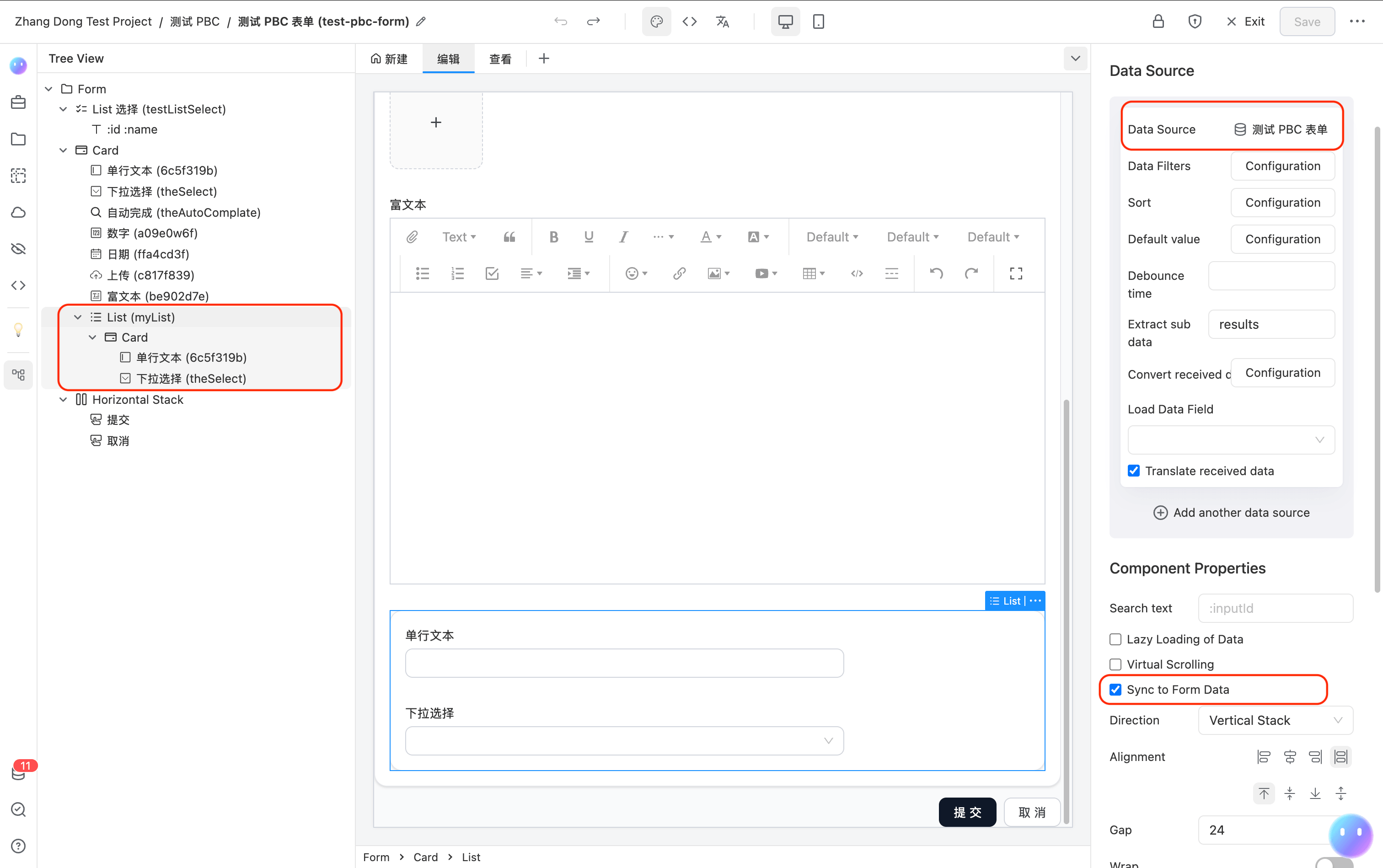
Configuration Example
{
  "component": "List",
  "id": "myList",
  "componentProps": {
    "dataSource": {
      "token": "test-pbc-form"
    },
    "syncToFormData": true
  },
  "fields": [
    {
      "component": "Card",
      "fields": [
        {
          "component": "Text",
          "componentProps": {
            "content": ":6c5f319b"
          }
        },
        {
          "component": "Input",
          "id": "6c5f319b",
          "title": "Text Input",
          "validation": {
            "maxLength": 200
          }
        },
        {
          "component": "Select",
          "id": "theSelect",
          "title": "Dropdown Select",
          "componentProps": {
            "stringEqual": true,
            "dataSource": {
              "token": "numeric-test-form",
              "pbcToken": "numeric-test-pbc"
            },
            "mapping": {
              "value": "id",
              "label": "name"
            }
          }
        }
      ]
    }
  ]
}
Data Storage Structure
With syncToFormData enabled, the List data is stored in the form store using its id as the key. In each row, child component ids correspond to their respective field values:
{
  "myList": [
    { "6c5f319b": "user input text", "theSelect": "selected value", ...other original fields },
    { "6c5f319b": "second row text", "theSelect": "another value", ... }
  ]
}
When the form is submitted, the myList field will contain the complete array data.
Notes
- The child component's
idis the key in each row's data object. Ensure theidmatches the data source field name for proper value display. - Nested Lists are supported (a List inside another List). Paths are automatically concatenated, e.g. outer
orderList.0, innerorderList.0.items.1. - Without
syncToFormDataenabled, the List is display-only and input components inside it will not affect the form data.
Getting and Listening to List Data in Scripts
With syncToFormData enabled, the List data resides in the form store and can be accessed and monitored via formApi.
Getting List data:
const listData = formApi.getValue('myList');
// => [{ "6c5f319b": "text value", "theSelect": "selected value", ... }, ...]
You can also get a specific field value from a specific row:
const firstRowSelect = formApi.getValue('myList.0.theSelect');
Listening to data changes:
Use formApi.on('change') to listen for all form data changes:
formApi.on('change', (allData) => {
  console.log('List data:', allData.myList);
});
Use formApi.on('fieldValueChange') to listen for specific field changes. Note that the id parameter in the callback uses a path format like myList.0.theSelect:
formApi.on('fieldValueChange', (id, newValue) => {
  // id format is "myList.{index}.{fieldId}", e.g. "myList.0.theSelect"
  if (id.startsWith('myList.')) {
    console.log(`Field ${id} changed to`, newValue);
  }
});